You've got your game down, your personality shines, but that default stream overlay is starting to feel… well, default. It’s a common hurdle: wanting your stream to look professional and unique without breaking the bank or needing a graphic design degree. This guide focuses on creating custom stream overlays that truly represent you, blending smart design choices with accessible tools.
Finding Your Stream's Visual Identity
Before you even open a design program, think about what makes your stream *yours*. Is it high-energy and chaotic? Calm and informative? Whimsical and fun? Your overlay should be a visual echo of that. Consider:
- Your Brand Colors: Do you have established colors from your logo, channel art, or even your favorite game? Use them consistently.
- Your Theme/Niche: A retro gamer will have a different aesthetic than a cozy cooking streamer. Let your content guide the style.
- Key Information: What absolutely *needs* to be on screen? Follower goals, recent donations, social media handles, your name? Don't clutter it.
- Legibility: Your text and graphics need to be clear and easy to read, even when small or partially obscured.
A common mistake is trying to cram too much information into the overlay. Less is often more. Viewers are there for *you* and your content, not to decipher a billboard. Think about how much screen real estate your overlay will take up. Will it cover crucial parts of your game or video? Design with negative space in mind.
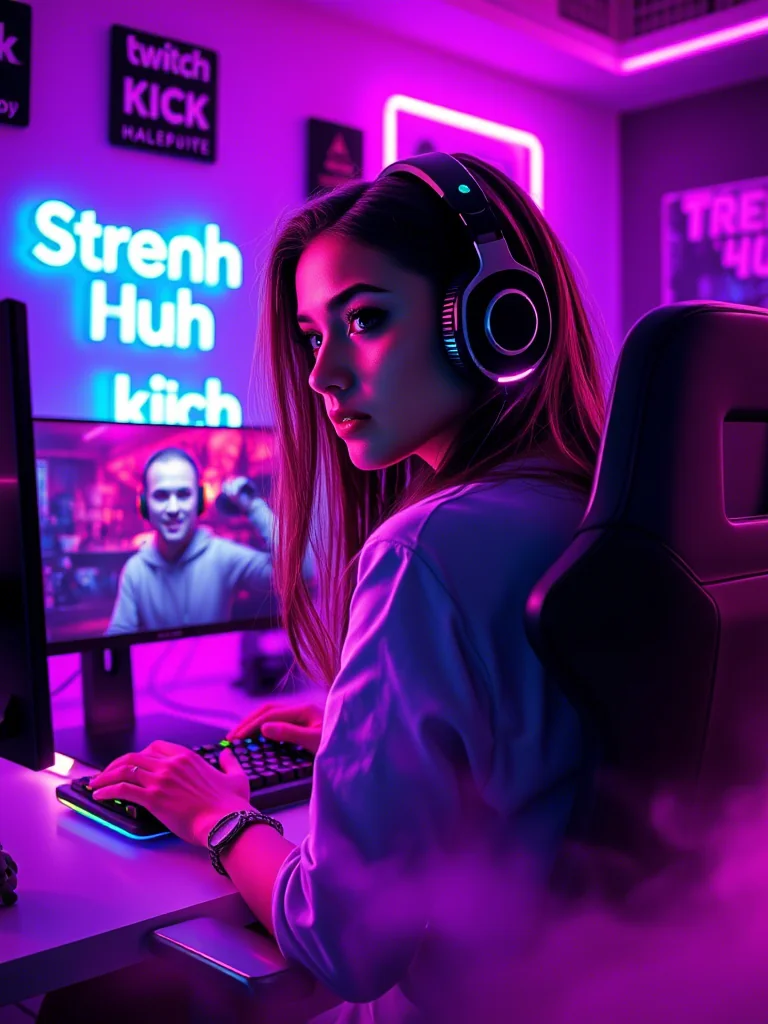
Accessible Tools for Custom Overlays
You don't need Adobe Creative Suite to make something look good. Here are a few avenues:
- Canva: Excellent for beginners. Offers templates, a vast library of graphics and fonts, and a drag-and-drop interface. You can export elements as transparent PNGs, which is crucial for overlays.
- Figma: A more powerful, free (for personal use) vector design tool. It has a steeper learning curve than Canva but offers much greater control and precision. It's fantastic for creating scalable vector graphics that look sharp at any size.
- StreamElements/Streamlabs Overlays: Many streaming software suites offer built-in overlay editors. While often template-based, they are designed specifically for streaming, integrating alerts and widgets seamlessly. You can often import custom-designed elements into these platforms too.
A Practical Scenario: The "Minimalist Gamer" Overlay
Let's say you're a streamer who plays fast-paced FPS games. Your primary concern is maximum screen visibility. You’ve decided on a dark, tech-inspired theme with blue and grey accents. Using Figma:
- Create a Base Frame: Set it to a common stream resolution like 1920x1080.
- Design a Corner Element: A simple, thin geometric shape in your accent blue for the top-left or bottom-right corner. This adds a touch of branding without taking up much space.
- Add a Subtle Webcam Border: A thin, dark grey border with a blue highlight. Keep it clean and unobtrusive.
- Incorporate Text (Sparingly): A small text box for your stream name, perhaps using a clean, sans-serif font. Place it in the corner element or along the bottom edge.
- Consider Alerts: If you use StreamElements, you'd design placeholder frames for your follower/sub alerts within Figma, ensuring they fit your aesthetic, and then configure them in StreamElements later.
- Export Transparent PNGs: Export each element (corner graphic, webcam border) as a separate, transparent PNG.
The key here is restraint. This overlay doesn't cover the game screen at all, only frames the webcam and adds a subtle brand marker. It’s functional and aesthetically aligned with the "minimalist gamer" vibe.
Community Pulse: The "Too Much Clutter" Feedback Loop
A recurring theme among streamers, especially those starting out or looking to level up, is the struggle to balance essential information with visual appeal. Many creators express concern about overwhelming their viewers with too many moving parts. You’ll often see discussions around alert boxes that are too large, follower goal bars that dominate the screen, or social media feeds that distract from gameplay. The consensus often circles back to prioritizing clarity and ensuring the core content—your gameplay, your face, your voice—remains the undisputed focus.
What to Re-Check and Update Over Time
Your stream's look isn't set in stone. Regularly review your overlay, especially after:
- Major Game or Content Shifts: If you start playing a different genre or pivot your content, does your overlay still fit?
- Platform Updates: Sometimes, new features or changes in how platforms display information might necessitate minor adjustments.
- Viewer Feedback: If multiple viewers comment that something is hard to read or distracting, take note.
- Personal Aesthetic Evolution: As you grow as a creator, your personal style might evolve. Your overlay can evolve with you.
A simple check every 3-6 months can help keep your stream looking fresh and professional.
2026-05-05