Want a polished, professional stream but lack the budget for a graphic designer or the time to learn complex software? You're not alone. Many streamers believe "custom" means starting from a blank canvas with Photoshop expertise, but that's simply not the case. With a strategic approach and the right accessible tools, you can craft unique stream overlays that reflect your brand without needing a design degree.
This guide isn't about becoming a master artist; it's about smart choices, leveraging user-friendly platforms, and understanding how to piece together elements for a cohesive, personalized look. Forget the intimidation, let's build something effective.
Smart Starts: Leveraging Templates and Editors
The biggest misconception is that "custom" means "made from scratch." For most streamers without design experience, it means customizing pre-existing elements and templates. This significantly lowers the barrier to entry and provides a solid foundation.
Your first step should be exploring platforms and resources designed for non-designers:
-
Online Graphic Editors (Canva, Adobe Express, Snappa): These web-based tools are goldmines. They offer drag-and-drop interfaces, vast libraries of free stock photos, icons, fonts, and ready-made templates for banners, social media posts, and even some basic overlay elements. You can use them to create simple "panels" for your channel, "be right back" screens, or even individual overlay components like webcam borders or chat boxes.
- How to use them: Start with a blank canvas sized appropriately (e.g., 1920x1080 for full-screen elements, or smaller for specific components). Experiment with shapes, text, and their built-in graphic elements. Focus on a consistent color palette and 1-2 readable fonts.
- Stream-Specific Overlay Editors: Many popular streaming software platforms or companion apps offer their own overlay builders. Tools like Streamlabs Desktop or StreamElements allow you to assemble and often lightly customize pre-built themes directly within their interfaces. While less about "designing" and more about "assembling," they are excellent for understanding how overlays are structured.
-
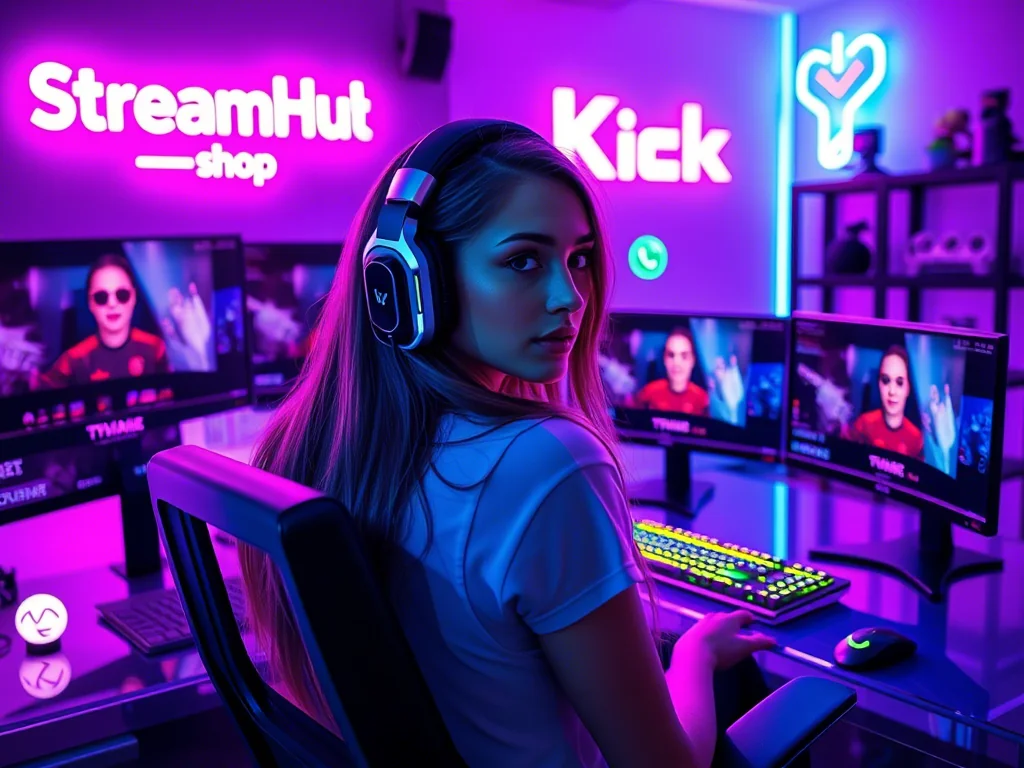
Pre-made Overlay Packs: For those looking for a jumpstart, resources like streamhub.shop offer curated template packs. The key here isn't just buying them; it's the smart customization. Often, these packs come with PSD files (for Photoshop) or PNG files. Even if you don't have Photoshop, you can often use free online editors (like Photopea, a web-based Photoshop clone) to open and edit text, colors, or remove elements from PSDs. For PNGs, you can overlay your own text or simple graphics on top in any basic editor.
- Focus on: Changing colors to match your brand, swapping out placeholder text, adding your logo, or even removing elements you don't need to simplify the look.
{ }
}
Building Beyond Templates: Simple Custom Elements
Once you're comfortable with templates, you can start creating genuinely custom, yet simple, elements. The secret is to think in layers and basic shapes.
-
Text Overlays: OBS Studio and Streamlabs Desktop both allow you to add text sources directly. Instead of just default fonts, download free, licensed fonts from sites like Google Fonts or DaFont. Choose 1-2 that represent your vibe (e.g., bold and blocky for gaming, elegant for art streams). Use these consistently.
- Tip: Create text with transparent backgrounds in Canva, export as PNG, and use it as an image source in OBS for more design flexibility (e.g., curved text, text with gradients).
-
Basic Shapes and Color Blocks: A simple rectangle can become a powerful design element. Use online editors to create solid color rectangles, rounded rectangles, or even subtle gradients. Export these as PNGs with transparent backgrounds. In OBS, these can serve as:
- Webcam borders (a thin rectangle with a transparent center).
- Backgrounds for follower alerts or chat boxes.
- Dividers or accent elements on your "Starting Soon" screen.
- Iconography: Free icon sites like Flaticon or The Noun Project offer thousands of icons (always check their licensing requirements). Download simple, monochromatic icons related to your game, theme, or social media, and use them sparingly to add visual interest without clutter.
- Consistent Color Palettes: This is crucial for a professional look. Use online tools like Coolors.co or Adobe Color to generate a palette of 3-5 harmonious colors. Stick to these colors across all your overlays, panels, and branding. This alone will elevate your aesthetic significantly.
What This Looks Like in Practice: The "Game On" Scene
Let's imagine you're a new variety streamer, "PixelPulse," and you want to create a clean, custom "Game On" scene for when you're live. You don't want a full-screen overlay, just a few key elements.
- Define Your Vibe & Colors: PixelPulse decides on a retro-futuristic aesthetic. They use Coolors.co to pick a palette: a dark teal, a vibrant magenta, a light grey, and a subtle electric blue accent. They choose a pixelated font and a clean sans-serif font from Google Fonts.
-
Webcam Frame:
- PixelPulse opens Canva (or Adobe Express).
- They create a new design, 1280x720 pixels (a common webcam resolution).
- They add a hollow rectangle shape, setting its border color to the vibrant magenta and the fill to transparent. They adjust the border thickness slightly.
- They export this as a PNG with a transparent background.
-
Alert Box Background:
- Still in Canva, they create a small rectangle (e.g., 600x150 pixels).
- They fill it with the dark teal color, add slightly rounded corners, and a thin electric blue border.
- They add a small, simple star icon (from Flaticon, free license) in light grey to one corner.
- They export this as a PNG with a transparent background.
-
Bringing it to OBS Studio:
- In OBS, PixelPulse adds their game capture, then their webcam (video capture device).
- They add an "Image Source" for the webcam frame PNG, positioning and scaling it precisely over their webcam.
- They add another "Image Source" for the alert box background PNG, placing it where they want alerts to appear.
- Finally, they add their Streamlabs/StreamElements alert box widget on top of the custom background, adjusting its CSS to ensure text and images pop.
Result: A unique, branded "Game On" scene assembled from simple, custom elements without any complex design software or skills.
Community Pulse: Overcoming the "Generic" Fear
Many creators in the StreamHub forums express a common anxiety: that their overlays will look "generic" or "cookie-cutter" if they rely on templates or simple tools. There's a perceived pressure to have something entirely unique, crafted by a professional designer.
The truth is, very few viewers will scrutinize the origin of your overlay elements. What they notice is consistency, clarity, and readability. A well-executed, simple overlay using customized templates or basic shapes often looks more professional than a poorly designed "from scratch" creation that lacks cohesion or is difficult to read.
Focus on these aspects to combat the "generic" feeling:
- Your personality: Infuse your chosen colors, fonts, and a few unique icons with your specific streaming persona.
- Consistency: Use the same color palette and font families across *all* your scenes and channel art. This builds brand recognition.
- Less is more: A clean, uncluttered overlay that directs attention to you and your content is always better than a busy, overly complex one.
Your Overlay Check-Up: What to Review and Update
Your stream overlays aren't a "set it and forget it" component. Regular review ensures they remain relevant, functional, and aligned with your evolving brand.
Here’s a quick-start action plan for creating simple, custom overlays:
- Define Your Core Vibe: Pick 2-3 main colors and 1-2 readable fonts. Less is more here.
- Choose Your Toolkit: Decide on a free online editor (Canva, Adobe Express), a stream-specific editor, or a template pack you can customize.
- Start Small: Focus on one key scene first, like "Starting Soon" or a basic webcam frame.
- Layer by Layer: Build elements individually (backgrounds, text, simple shapes, icons) and export them as transparent PNGs.
- Assemble in OBS/Streamlabs: Bring your PNGs and text sources together, positioning them for clarity.
- Test, Test, Test: Always run a test stream to check how overlays look on various resolutions and devices, and ensure text is readable.
- Iterate, Don't Strive for Perfection: Your first version doesn't have to be your final. You can always refine elements over time.
Regular Maintenance Checklist:
- Information Accuracy: Are your social media handles correct? Any old sponsor logos that need updating or removing? Is your "Next Stream" date accurate on relevant scenes?
- Brand Consistency: Has your channel's overall brand shifted? Do your overlays still align with your current logo, colors, and general aesthetic?
- Readability & Clarity: Are all text elements easy to read against various game backgrounds? Are any elements obscuring crucial game information or your facecam?
- Technical Functionality: Do all dynamic elements (like follower alerts, chat boxes, sub goals) appear correctly and are they positioned well within their custom backgrounds? Are all image files loading correctly?
- Performance Impact: While minimal for simple overlays, occasionally check if complex animated elements (if you added any) are causing any unexpected frame drops or resource usage.
2026-04-16