The Ergonomics of Attention: Refining Your Dual-Monitor Stream Setup
Most streamers think a dual-monitor setup is just about having "more screen space." In reality, your second monitor is the most important piece of production equipment you own because it is your window into your audience. When your eyes constantly dart to the wrong corner of your desk, your pacing breaks, your eye contact with the camera suffers, and your connection with viewers feels detached.
The goal isn't just to display chat; it’s to integrate your audience into your eye line so that reading a comment feels like a natural conversation rather than a frantic manual labor task.
{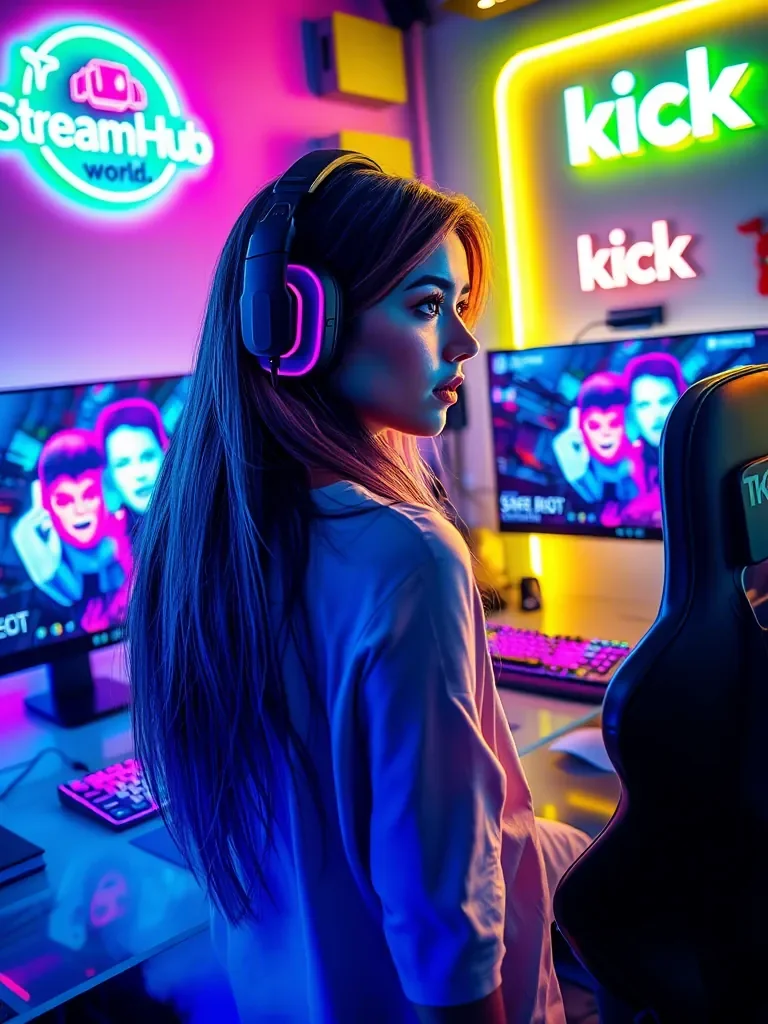 }
}
The Physics of Eye Line Efficiency
The most common mistake I see in studio tours is mounting the second monitor too far to the side or at an awkward vertical angle. If your chat monitor is at a 90-degree angle to your main screen, you aren't just shifting your gaze; you are physically turning your head away from the lens. This creates a "disconnect" moment where the viewer loses you.
Position your secondary monitor at a 30-to-45-degree angle relative to your primary display, tucked as close as possible to the bezel of the main screen. If you are using a monitor arm, lower the display so the top edge is level with your primary screen. This allows you to glance at chat using only your eyes, keeping your head facing the primary camera. If you can read chat by moving your pupils rather than your neck, your stream will immediately feel more professional and fluid.
Managing Chat Density and Clutter
A high-resolution second monitor is a double-edged sword. When you have too much empty space, you often end up cramming it with irrelevant windows—event logs, secondary dashboards, or browser tabs you don't need mid-stream. This creates "visual noise" that makes it harder for your brain to pick out the chat messages that matter.
The "One-Task" Framework:
- Primary zone: Use the top two-thirds of your second monitor for your chat client. Keep it on a dark background with a high-contrast font to reduce eye strain.
- Secondary zone: Use the bottom one-third for your OBS or streaming software preview. This allows you to monitor your levels and frame health without needing to look at your main gameplay monitor.
- The "Hidden" rule: If it isn't essential for real-time interaction (like a web browser or a music playlist), hide it behind your chat or move it to a virtual desktop. If you aren't looking at it every 30 seconds, it shouldn't be visible.
Community Pulse: The Recurring Struggle
Across various creator forums, a pattern emerges: streamers frequently report "monitor fatigue" by the end of a long session. The consensus is that the culprit is usually brightness disparity. If your main monitor is set to a standard daylight brightness but your chat-heavy second monitor is blasting white light at 100% intensity, your eyes will work overtime to adjust as you bounce back and forth. Creators often advise running the second monitor at 60-70% brightness compared to the primary to keep the focus on the gameplay while maintaining chat readability.
Practical Case: The "Mid-Game" Pivot
Consider a creator playing a high-intensity action game. During combat, they rely on peripheral vision to catch chat movement. By using a semi-transparent chat overlay or a dedicated vertical monitor (rotated 90 degrees), they capture more vertical chat history. This is a common strategy for fast-paced streamers: a vertical secondary screen allows for a longer "scrolling history" of comments, meaning they don't have to look as often because the messages stay on screen for a longer duration. This is superior to a wide landscape monitor, which tends to cut off messages before you have a chance to address them.
Maintenance and Review
Set a recurring date to audit your screen layout. Every three months, ask yourself these three questions:
- Did I actually look at that specific widget during my last five streams, or is it just taking up space?
- Is my chat font size readable from my seated distance, or am I squinting? (Accessibility is production quality.)
- Are my cables managed in a way that allows me to adjust the monitor angle, or am I locked into a sub-optimal position because of cable tension?
If you find that your desk setup is physically impeding your ability to iterate on your layout, explore mounting solutions or cable management accessories at streamhub.shop to clear up that desk real estate.
2026-06-06