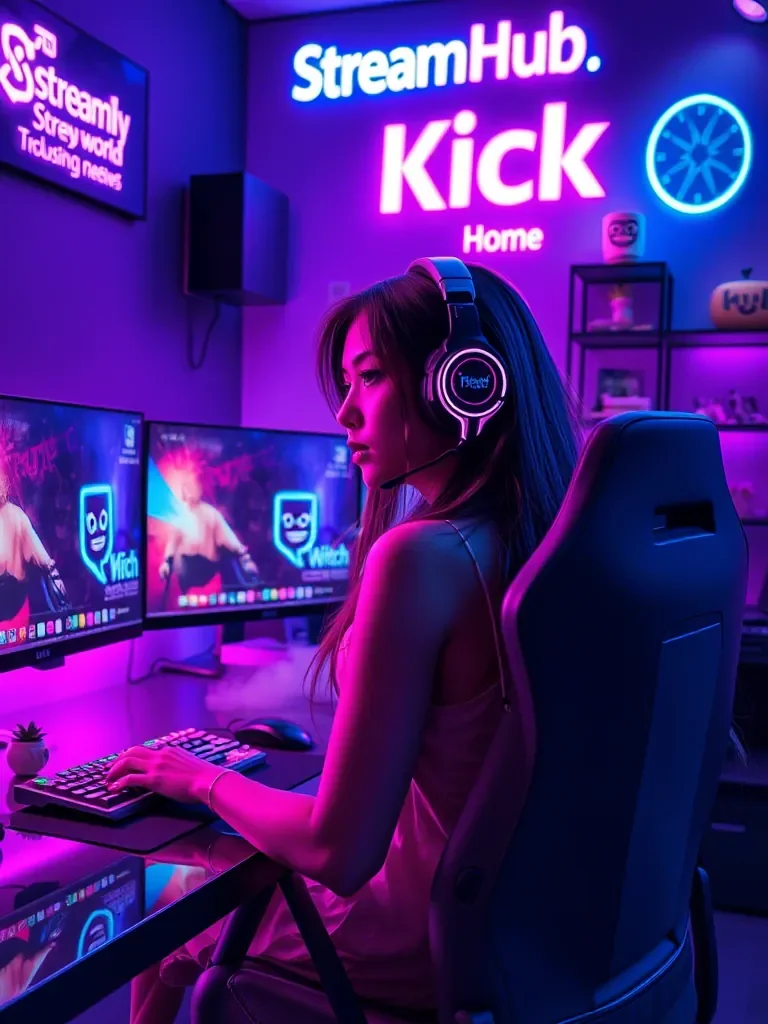
If you are still minimizing your game or toggling through windows to check your chat, logs, or stream health, you are playing at a disadvantage. Moderation isn't just about deleting spam; it is about maintaining the pulse of your community while you are in the middle of a high-stakes gameplay moment. A dual-monitor setup isn't a luxury—it is the baseline requirement for keeping your eyes on the audience without breaking your immersion.
The goal here is simple: eliminate the friction between "playing the game" and "managing the space." When you have to Alt-Tab, your performance dips, your focus breaks, and your audience senses that you are distracted. By offloading your dashboard, chat logs, and production controls to a second display, you turn moderation into a passive glance rather than an active chore.
{ }
}
The Physical Workflow: Positioning and Hierarchy
Don't just slap a second monitor on your desk and call it a day. The physical placement determines how much neck strain you experience and how quickly you can react to a moderation issue.
The Hierarchy of Attention
Your primary monitor stays dead-center for gameplay. The secondary monitor should be positioned to your dominant side, angled slightly inward toward your face. This keeps the secondary screen in your peripheral vision, allowing you to catch spikes in chat activity or system warnings without turning your head away from the action.
Software Layout for Maximum Clarity
If you are running a two-monitor split, prioritize your screen real estate by importance:
- Quadrant 1 (Top-Left): The active stream chat. Keep this large enough to read quickly.
- Quadrant 2 (Top-Right): Stream health and bandwidth monitors. You want to see if your bitrate is fluctuating without needing to hover over it.
- Quadrant 3 (Bottom-Left): Moderation queue/Automated filter logs. This is where you quickly review held messages.
- Quadrant 4 (Bottom-Right): Quick-action buttons or scene switchers. Keep your essential controls within a mouse-flick's distance.
A Real-World Moderation Scenario
Imagine you are three hours into a broadcast. A viewer begins posting repetitive, low-level disruptive content that bypasses your automated keyword filters. On a single monitor, you would have to pause your gameplay, switch windows, find the user, click the moderation option, and switch back. In the heat of a game, that is a 10-second process that stalls your momentum.
With a dual-monitor setup, you notice the chat moving faster in your peripheral vision. You don't take your hands off your controls. You glance to your right, see the user highlight, and with one flick of your secondary mouse, you ban the user or time them out. You never stop talking, you never stop playing, and the disruption is neutralized in under two seconds. The community barely notices the cleanup happened.
Community Pulse: The Recurring Friction
Across the creator landscape, the most common frustration regarding multi-monitor setups isn't the hardware—it's "window drift." Creators often report that their secondary applications (like chat boxes or dashboard windows) reset their size or position whenever they reboot their PC or update their GPU drivers. This is a recurring pain point that leads to "clutter anxiety," where a streamer spends the first ten minutes of every session re-arranging their workspace instead of preparing to go live. The consensus among experienced creators is to use window-management software to "save" your layout profiles, ensuring that every tool snaps back to its designated pixel-perfect location the moment you power up your desk.
Maintaining Your Setup
Your workflow needs to evolve as your audience grows. What works for a 10-viewer stream will be overwhelming for a 500-viewer stream. Schedule a review every quarter to assess your setup:
- Check your "noise" levels: Are you monitoring too much? If you are constantly staring at the secondary screen, you aren't engaging with the camera. Simplify your layout if you find yourself reading logs more than you are talking to your viewers.
- Audit your browser impact: Secondary monitors often host browser-based dashboards that consume significant RAM. Every few months, clear your cache and audit which browser extensions are actually necessary for your moderation flow.
- Hardware update: If you find yourself struggling to read the text on your secondary monitor, don't strain your eyes. Adjust the UI scaling in your operating system settings—don't compromise your vision for the sake of fitting more widgets on the screen.
If you are looking for specific desk accessories or organizational tools to help keep your multi-monitor cables managed and your desk space functional, you can look into streamhub.shop for modular solutions.
2026-06-04
FAQ: Practical Adjustments
Q: Does a second monitor impact my GPU performance?
A: Modern GPUs handle secondary displays easily. However, if you are running resource-heavy animations on that second screen, you might see a minor hit to your frame budget. Keep your second screen's content static or low-motion to maximize your primary game performance.
Q: Should I use a vertical monitor for my chat?
A: Vertical orientation is excellent for long chat logs. It allows you to see more historical context without needing to scroll up constantly. If you have the desk space, it is a superior choice for heavy-text moderation.