In the highly competitive arena of live streaming, where creators vie for attention across a crowded digital landscape, visual presentation is no longer a luxury—it's a strategic imperative. Your Twitch stream is more than just gameplay; it's a broadcast production, and like any professional broadcast, its visual packaging plays a critical role in audience retention and brand identity. This is precisely where Twitch overlays come into play, transforming a basic stream into a polished, engaging, and memorable experience.
Twitch overlays are essentially graphical elements that are superimposed over your game capture, webcam feed, and other stream sources. They serve as the visual framework of your broadcast, integrating seamlessly to provide viewers with essential information, reinforce your personal brand, and create an immersive atmosphere. From dynamic alerts celebrating new subscribers to sleek webcam frames and informative stream labels, overlays are the visual backbone of a compelling stream.
Understanding, choosing, and implementing the right overlays is fundamental for any streamer aiming to elevate their content beyond the ordinary. This comprehensive guide from StreamHub World will demystify the world of Twitch overlays, offering insights into their components, acquisition methods, installation best practices, and optimization strategies to ensure your stream not only looks professional but also performs flawlessly.
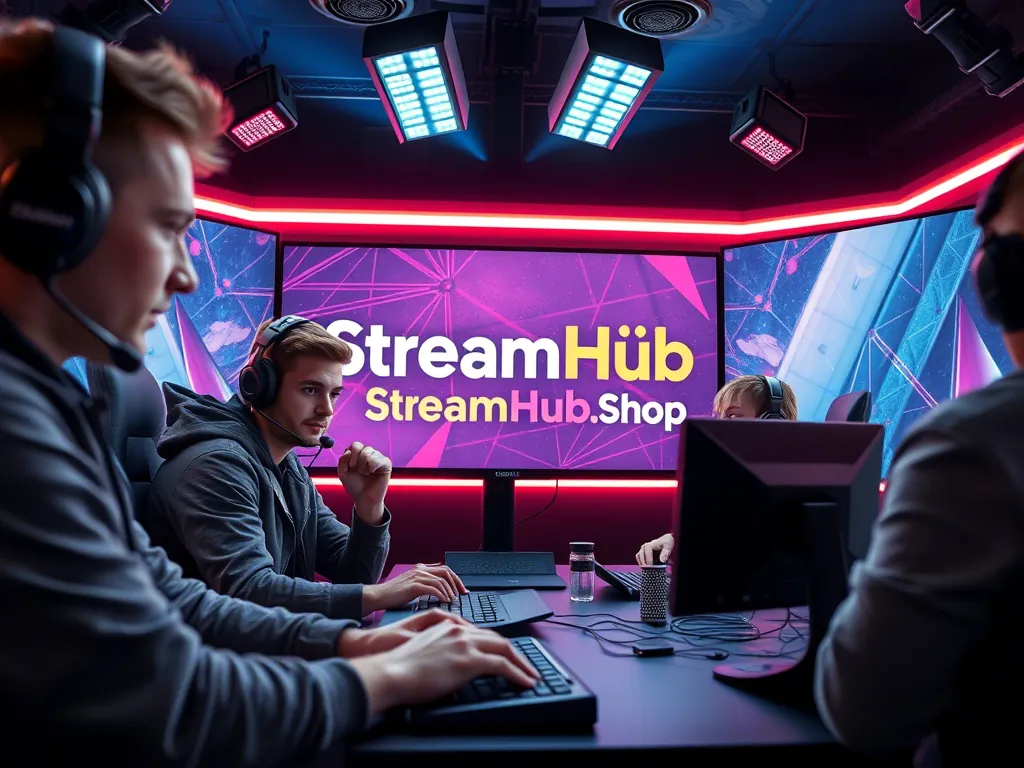
What Are Twitch Overlays? A Deep Dive into Stream Visuals
At their core, Twitch overlays are digital graphics designed to enhance the visual appeal and informational richness of a live stream. Think of them as the custom user interface for your broadcast, providing context and branding without obscuring the main content. They are typically transparent or semi-transparent images and animations layered over your primary video feeds using broadcasting software like OBS Studio or Streamlabs Desktop.
Key Components of a Compelling Twitch Overlay
A well-designed overlay is a symphony of various elements working in harmony. Here are the common components you'll encounter:
- Webcam Frame: A graphic border around your webcam feed, often themed to match your overall stream aesthetic. It helps integrate your facecam smoothly into the layout.
- Alerts: Dynamic, animated notifications that pop up on screen to celebrate viewer interactions such as new follows, subscriptions, donations, raids, or hosts. These are crucial for acknowledging community engagement in real-time.
- Chat Box Overlay: A transparent or themed box that displays your live chat feed directly on the stream. This allows viewers to follow discussions without needing a separate chat window.
- Stream Labels/Information Panels: Text-based elements that display dynamic information like "Latest Follower," "Top Donator," "Currently Playing," or "Stream Uptime." These keep your audience informed and highlight community contributions.
- Game Capture Frame: A subtle border or graphic element around your game footage, helping to define its space within the layout.
- Starting Soon/BRB/Ending Screens: Full-screen graphics or animations used during breaks, before the stream begins, or after it concludes. These provide a professional transition and manage viewer expectations.
- Stinger Transitions: Short, animated video clips used to transition smoothly between different scenes (e.g., from "Starting Soon" to "Gameplay" or "Gameplay" to "BRB"). They add a cinematic touch.
- Event Lists: A dynamic list showcasing recent follows, subs, donations, or other events, often displayed unobtrusively in a corner.
- Social Media Panels: Small icons or text displaying your handles on platforms like Twitter, Instagram, or YouTube, encouraging cross-platform engagement.
Why Custom Overlays Matter: Branding, Engagement, and Professionalism
The impact of a well-crafted Twitch overlay extends far beyond mere aesthetics:
- Establishes Brand Identity: Your overlay is a visual extension of your brand. Consistent colors, fonts, and themes create a recognizable identity that viewers associate with your content. This distinct branding helps you stand out in a sea of streamers.
- Enhances Viewer Engagement: Dynamic alerts provide instant gratification for viewer interactions, fostering a sense of community and encouraging further engagement. An engaging visual layout keeps viewers visually stimulated and invested.
- Conveys Professionalism: A polished overlay signals to viewers that you take your stream seriously. It reflects attention to detail and a commitment to providing a high-quality broadcast, which can be crucial for attracting and retaining an audience.
- Improves Information Delivery: Overlays strategically place essential information (like who just subscribed or what game you're playing) in a clear, unobtrusive manner, preventing viewers from having to ask repeatedly.
- Creates Atmosphere: Themed overlays can dramatically enhance the mood of your stream. A horror game might benefit from dark, gritty overlays, while a cozy crafting stream could use soft, pastel designs.
Types of Twitch Overlays: Finding Your Style
Twitch overlays come in various forms, each offering distinct advantages and catering to different streaming styles and technical setups.
Static Overlays: Simplicity and Performance
Static overlays are image files (typically PNGs with transparent backgrounds) that remain fixed on your screen. They are the simplest to implement and are excellent for streamers who prioritize performance and minimalist design.
- Pros:
- Lightweight: Minimal impact on CPU/GPU performance.
- Easy to Set Up: Just add as an image source in your broadcasting software.
- Cost-Effective: Often cheaper or free to acquire.
- Consistent Look: Provides a stable visual brand.
- Cons:
- Less Dynamic: Lacks the visual flair of animated elements.
- Limited Interactivity: Cannot react to stream events directly.
Animated Overlays: Dynamic Engagement
Animated overlays incorporate motion graphics, adding a layer of dynamism and polish to your stream. These can include animated webcam frames, flowing alerts, dynamic stream labels, and captivating stinger transitions. They typically come in video formats like WEBM (for transparency and small file size) or sometimes GIF for simpler loops.
- Pros:
- Highly Engaging: Motion captures attention and adds a professional, premium feel.
- Modern Aesthetic: Keeps your stream looking fresh and cutting-edge.
- Enhanced Branding: Complex animations can reinforce a sophisticated brand.
- Cons:
- Performance Impact: Can consume more CPU/GPU resources, especially if not optimized.
- More Complex Setup: May require specific settings or browser source configurations.
- Higher Cost: Generally more expensive to purchase or commission.
Interactive Overlays: Community-Driven Visuals
While less common as a standalone category, interactive elements can be integrated into overlays. These are typically driven by third-party integrations or channel point redemptions, allowing viewers to trigger visual effects or changes on stream. This fosters a unique level of community participation, making viewers feel more connected to the live experience.
Acquiring and Creating Your Twitch Overlays
Whether you're a seasoned streamer or just starting, there are multiple avenues to get the overlays that perfectly match your vision and budget.
Free Resources and Basic Builders
For those on a tight budget or just experimenting, several platforms offer free or freemium overlay options:
- Streamlabs Desktop: Comes with a vast library of free overlay themes and widgets. It's an all-in-one solution for broadcasting and includes integrated alert boxes, chat widgets, and more.
- StreamElements: Similar to Streamlabs, StreamElements offers a cloud-based overlay editor with numerous free themes, alerts, and widgets. Its browser source integration is very efficient.
- Canva: While not stream-specific, Canva can be used to design basic static elements like webcam frames, "Starting Soon" screens, or information panels using their extensive template library. You'll need to export them as PNGs with transparent backgrounds.
- Nerd or Die (Free Section): Offers some high-quality free overlay templates and assets, particularly useful for getting started with a professional look.
Premium Marketplaces and Design Bundles
For streamers seeking higher quality, more unique, and professionally designed visuals, premium marketplaces are the go-to:
- Nerd or Die: Renowned for its cutting-edge, stylish, and often animated overlay packages. They offer a wide range of themes, from minimalist to complex esports styles.
- Visuals by Impulse: Another industry leader, offering a diverse collection of premium overlay packages, stream bundles, and custom design services. Their designs are known for their high quality and attention to detail.
- Own3D.tv: A massive marketplace featuring thousands of overlay packs, emotes, and stream assets. You can find almost any style here, often with comprehensive bundles that include everything from alerts to panels.
- Move Designers: Specializing in animated stream designs, Move Designers offers sleek and modern overlay packages that often include unique stinger transitions and dynamic alerts.
Commissioning Artists for Unique Branding
For the ultimate in personalization and branding, commissioning a professional graphic designer or animator is the best route. This ensures your overlays are 100% unique and perfectly aligned with your specific brand vision.
- Freelance Platforms: Websites like Fiverr, Upwork, and Etsy host talented artists specializing in Twitch graphics. You can browse portfolios and commission custom work tailored to your needs.
- Specialized Stream Designers: Many designers exclusively work with streamers, understanding the nuances of broadcast graphics. A quick search on Twitter or Twitch for "stream designer" will yield many results.
Investing in custom design, much like investing in high-quality equipment or professional marketing, can significantly impact your channel's growth and viewer perception. Services like streamhub.shop complement this by providing tools and insights to further amplify your reach and engagement once your visual brand is established, ensuring your polished stream reaches the widest possible audience.
DIY Tools for the Hands-On Creator
If you have design skills and want full control, creating your own overlays is a rewarding path:
- Adobe Photoshop/GIMP: Excellent for designing static image elements like webcam frames, borders, and info panels. GIMP is a powerful free alternative to Photoshop.
- Adobe After Effects/DaVinci Resolve: For animated overlays, these tools are essential. After Effects is the industry standard for motion graphics, while DaVinci Resolve offers robust video editing and motion graphics capabilities, with a powerful free version.
- OBS Studio/Streamlabs Desktop: Beyond just hosting overlays, these tools offer some basic overlay customization. You can manipulate sources, add text, and create simple scene layouts.
Installing Your Twitch Overlay: A Step-by-Step Guide
Once you've acquired your overlays, the next crucial step is integrating them into your broadcasting software. We'll focus on OBS Studio, the most widely used software, but the principles apply to Streamlabs Desktop as well.
For Static Image Overlays (PNG Files)
- Open OBS Studio: Launch your broadcasting software.
- Create a Scene: In the 'Scenes' panel, click the '+' button to create a new scene (e.g., "Gameplay with Overlay").
- Add Your Game Capture: In the 'Sources' panel for your new scene, click the '+' button and choose 'Game Capture' (for full-screen games) or 'Window Capture' (for specific windows). Configure it to capture your game.
- Add Your Webcam (Optional): If you use a webcam, add a 'Video Capture Device' source and select your webcam.
- Add Image Overlays:
- Click '+' in the 'Sources' panel again.
- Select 'Image'.
- Name your source (e.g., "Webcam Frame," "Overall Overlay").
- Browse to your PNG image file and click 'OK'.
- Adjust the size and position of the image on your canvas by clicking and dragging.
- Repeat for all static elements (webcam frame, game border, info panels).
- Layering: Ensure your image overlays are above your game and webcam sources in the 'Sources' list. Sources higher in the list appear on top. Drag and drop to reorder.
For Animated Overlays and Alerts (WEBM and Browser Sources)
Animated overlays and alerts typically use a Browser Source in OBS Studio, which allows you to display web content (including animated elements) directly on your stream.
- Alerts (Streamlabs/StreamElements):
- Log into your Streamlabs or StreamElements dashboard.
- Navigate to your 'Alert Box' settings (Streamlabs) or 'My Overlays' and select your alert overlay (StreamElements).
- Copy the 'Widget URL' provided by the platform. This is a unique URL for your alert box.
- In OBS Studio, add a new 'Browser Source'.
- Name it (e.g., "Alert Box").
- Paste the copied URL into the 'URL' field. Adjust width and height as recommended by the platform, or set them to your canvas resolution.
- You can test alerts from your Streamlabs/StreamElements dashboard to see them appear in OBS.
- Animated Webcam Frames/Transitions (WEBM):
- Add a new 'Media Source' in OBS Studio.
- Name it (e.g., "Animated Webcam Border").
- Browse to your WEBM file.
- Crucially: Check the 'Loop' box if it's a looping animation (like a webcam frame). Uncheck if it's a one-shot transition.
- Check 'Show nothing when playback ends' for transitions if it's not looping.
- Adjust position and size.
- For stinger transitions, you'll configure them under 'Scene Transitions' settings in OBS, linking them to a specific media source.
- Chat Box:
- Similar to alerts, Streamlabs and StreamElements provide 'Chat Box' widgets with unique URLs.
- Add a 'Browser Source' in OBS, paste the URL, and adjust dimensions. Configure font, colors, and themes within your Streamlabs/StreamElements dashboard.
General Tips for Installation
- Layering is Key: Always ensure your overlays are positioned correctly in the 'Sources' list. Alerts usually go highest, then webcam frames, then chat, then game capture.
- Test Thoroughly: Before going live, use OBS's 'Start Virtual Camera' or record a local session to ensure all elements appear correctly and function as expected.
- Performance Check: Monitor your CPU/GPU usage with overlays enabled. If performance drops significantly, consider optimizing your overlay files or adjusting settings.
Optimizing Your Overlay for Performance and Viewer Experience
A beautiful overlay is useless if it causes your stream to lag or distracts your viewers. Optimization is crucial.
- File Formats:
- For static images, use PNG with transparency. Optimize file size without losing quality.
- For animated elements, WEBM is preferred over GIF or MP4 due to its excellent transparency support and smaller file sizes, leading to less resource consumption.
- Resolution and Scaling: Ensure your overlay assets are designed at or near your streaming resolution (e.g., 1920x1080). Scaling down larger images is okay, but scaling up small images will result in pixelation.
- Minimize Browser Sources: Each browser source consumes some CPU/RAM. Combine elements where possible (e.g., a single StreamElements overlay URL can contain all your alerts, chat, and stream labels).
- GPU Acceleration: Ensure your broadcasting software is set to use GPU acceleration for browser sources if available, as this offloads processing from your CPU.
- Visual Clutter: Avoid over-stuffing your screen. A clean, balanced layout is always more appealing and less distracting than a busy one. Prioritize what information is truly essential.
- Font Readability: Ensure any text in your overlays (stream labels, chat) is easy to read against your background. Use legible fonts and sufficient contrast.
- Color Harmony: Maintain a consistent color palette that aligns with your brand and is pleasing to the eye.
Comparison of Popular Overlay Providers and Their Offerings
Choosing where to get your overlays depends on your budget, desired customization, and technical comfort. Here's a comparison of some leading options:
| Provider/Method | Type (Free/Paid/Both) | Customization Level | Key Features | Price Range | Best For |
|---|---|---|---|---|---|
| Streamlabs/StreamElements | Both (Freemium) | Moderate (Pre-made themes, some customization) | All-in-one widgets, alerts, chat, themes, cloud-based editor | Free - $149/year (Prime/Ultra) | Beginners, streamers wanting integrated tools, budget-conscious |
| Nerd or Die | Paid (Some free assets) | High (Premium packs, custom assets, modular designs) | Modern, stylish animated packs, tutorials, robust community | $20 - $100+ (Per pack/bundle) | Streamers seeking high-quality, professional, animated looks |
| Visuals by Impulse | Paid (Some free assets) | High (Themed packs, custom work, diverse styles) | High-quality, curated designs, professional branding, custom services | $20 - $200+ (Per pack/custom) | Serious streamers, those looking for premium aesthetics and unique branding |
| Own3D.tv | Paid | Moderate-High (Massive marketplace, themed bundles) | Extensive library of overlays, emotes, panels, transitions, varied styles | $15 - $150+ (Per pack/bundle) | Streamers wanting a wide selection, specific themes, quick solutions |
| Commissioned Artist | Paid (High) | Maximum (Unique, tailored to specific vision) | One-of-a-kind design, perfect brand alignment, exclusive assets | $100 - $1000+ (Project dependent) | Established streamers, brands with specific vision, high budget |
| DIY (Photoshop/AE) | Software Cost (Free-High) | Maximum (Limited only by skill/time) | Complete creative control, learning new skills, unique personal touch | Free (GIMP, Resolve) - $50+/month (Adobe Suite) | Design-savvy individuals, those with ample time, low design budget |
Overlay Acquisition Methods Comparison: Time, Cost, and Customization
The method you choose for acquiring your overlays impacts several key factors. Here’s a comparative look:
| Method | Initial Cost | Time Investment | Customization Potential | Quality Potential | Ideal For |
|---|---|---|---|---|---|
| Using Free Templates | Low (Free) | Low | Basic (Colors, text) | Variable (Often simple) | New streamers, testing ideas, very limited budget |
| Buying Premium Packs | Medium ($20 - $200) | Low-Medium | Good (Themed, modular components) | High | Balanced approach, professional look, specific aesthetic in mind |
| Commissioning an Artist | High ($100 - $1000+) | Medium-High (Communication, revisions) | Maximum (Unique, brand-specific) | Very High | Established brands, specific vision, desire for exclusivity |
| DIY (Photoshop, After Effects) | Low (Software) - High (Learning) | Very High (Learning curve, design time) | Maximum (Skill-dependent) | Variable (Skill-dependent, can be very high) | Designers, hobbyists, those with ample time and creative drive |
FAQ: Frequently Asked Questions About Twitch Overlays
Q1: How do Twitch overlays impact stream performance?
A1: The impact varies based on the type and optimization of your overlays. Static PNG images have minimal impact. Animated overlays, especially those using WEBM files or numerous browser sources, can consume more CPU/GPU resources. Poorly optimized animations or too many active browser sources can lead to dropped frames, higher CPU usage, and a less smooth stream. Always ensure your animated overlays are optimized (e.g., using WEBM with alpha channel) and test your stream performance before going live.
Q2: Can I use different overlays for different games or stream types?
A2: Absolutely! Many streamers create multiple scenes in OBS Studio or Streamlabs Desktop, each with a unique overlay setup tailored to different content. For example, you might have a dedicated overlay for an FPS game, a more relaxed one for a "Just Chatting" session, and a cozy aesthetic for a crafting stream. This flexibility allows you to perfectly match the visual theme to your content, enhancing viewer immersion. Remember to organize your scenes clearly for quick switching.
Q3: Are animated overlays worth the extra cost or effort?
A3: For many streamers, yes. Animated overlays significantly enhance the professional look and dynamism of your stream, making it more engaging and memorable. They can help you stand out and provide a premium viewer experience. While they might require more investment (time or money) and careful optimization, the increased production value and potential for higher viewer retention often justify the effort, especially as your channel grows. Think of it as investing in your broadcast's visual appeal, which can indirectly lead to better engagement and growth. To further support this growth, leveraging platforms like streamhub.shop for audience insights and promotion can be a smart move once your visual identity is perfected.
Q4: How often should I update my Twitch overlay?
A4: There's no strict rule, but generally, it's good practice to refresh your overlays periodically. Consider updating them when you undergo a significant rebrand, change your primary game genre, or feel your current look is becoming dated. Some streamers update yearly, others every few years, or only when they hit major milestones. It's less about a fixed schedule and more about ensuring your visual identity accurately reflects your current brand and keeps your stream feeling fresh for both you and your audience.
Q5: What's the best software to create my own overlays?
A5: For static image overlays (webcam frames, info panels), Adobe Photoshop is the industry standard, with GIMP being an excellent free and open-source alternative. For animated overlays (alerts, stingers, dynamic text), Adobe After Effects is unparalleled for motion graphics. For video editing software with decent motion graphics capabilities, DaVinci Resolve (especially its free version) is a powerful option. The "best" software ultimately depends on your skill level, budget, and specific design needs.
The Strategic Imperative of Visual Branding on Twitch
In conclusion, Twitch overlays are far more than just decorative elements; they are integral components of a successful streaming strategy. They are the visual language through which your stream communicates its professionalism, brand identity, and commitment to viewer engagement. From the subtle elegance of a static webcam frame to the captivating flair of an animated alert, every graphical element contributes to the overall viewer experience and your ability to stand out in a crowded digital space.
By carefully selecting, customizing, and optimizing your Twitch overlays, you invest in your stream's long-term appeal and growth. Whether you choose to leverage free resources, purchase premium packages, commission a bespoke design, or craft every pixel yourself, the effort dedicated to your stream's visual branding will undoubtedly pay dividends in viewer retention, community building, and overall channel success. Prioritize your stream's aesthetics, and watch as your broadcast transforms into a truly captivating and memorable production.