In the fiercely competitive realm of live streaming, mere content delivery is no longer sufficient to capture and retain audience attention. Today's most successful streamers differentiate themselves through dynamic, interactive, and visually engaging broadcasts. At the heart of this elevated streaming experience lies the strategic integration of OBS Browser Sources and their associated widgets. These powerful tools transform a basic video feed into a professional, interactive spectacle, providing real-time alerts, displaying viewer interactions, and delivering crucial stream information directly to your audience.
For content creators using OBS Studio, understanding and mastering browser sources is not just an advantage; it's a fundamental requirement for building a compelling and memorable brand. This comprehensive guide from StreamHub World will delve deep into the world of OBS browser sources, exploring their functionalities, showcasing leading widget platforms, offering practical implementation steps, and providing expert tips to optimize your stream's performance and viewer engagement.
What Exactly Are OBS Browser Sources?
An OBS Browser Source is essentially a miniature web browser embedded directly within OBS Studio. It allows you to display any web-based content—a website, a specific web widget, a custom HTML page—as a layer within your stream. OBS uses a stripped-down version of the Chromium Embedded Framework (CEF), the same engine that powers Google Chrome, to render this content. This means anything that can be displayed in a modern web browser can potentially be used as a source in OBS.
The magic happens when this capability is combined with streaming widgets. Widgets are small web applications, often provided by third-party services like Streamlabs or StreamElements, designed specifically to integrate with your streaming platform (Twitch, YouTube, Facebook Gaming, etc.). They listen for events (like new followers, subscribers, donations) or display dynamic data (chat, goals, event lists) and then render that information as visual elements that can be placed anywhere on your OBS canvas via a browser source.
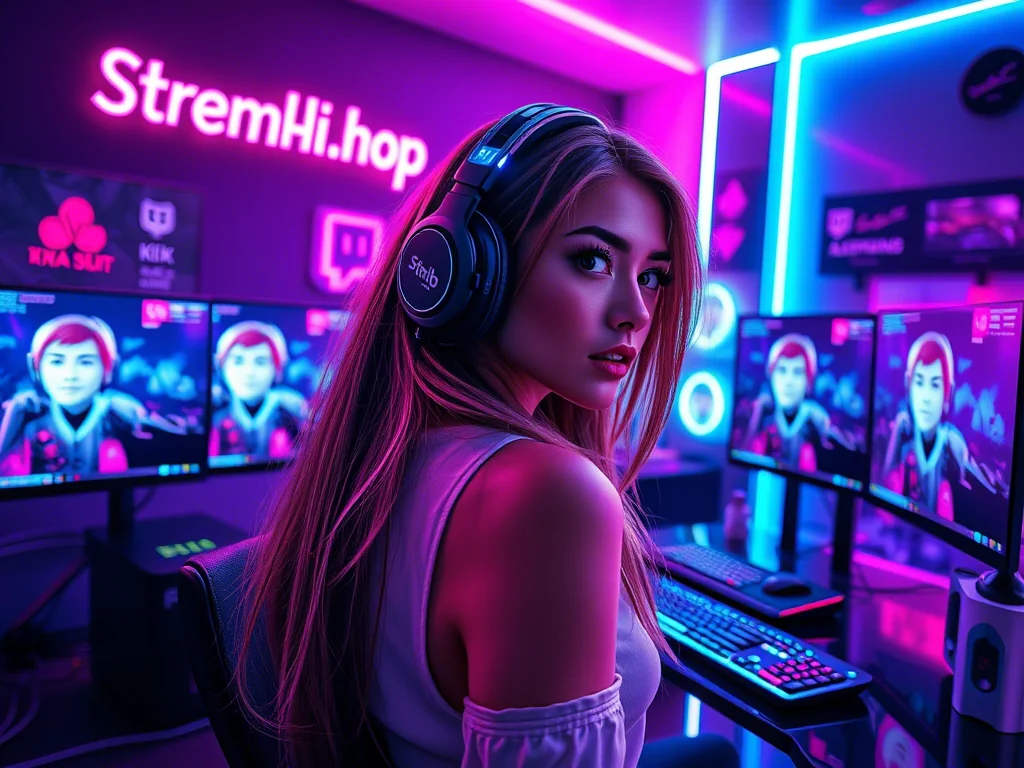
Why Browser Sources are Crucial for Modern Streamers
The integration of browser sources offers a multitude of benefits that directly contribute to a more professional, engaging, and interactive live stream:
- Enhanced Interactivity: Display real-time alerts for new follows, subscriptions, donations, raids, and more, directly acknowledging and celebrating your community's support.
- Professional Aesthetic: Integrate custom overlays, animated graphics, and dynamic information panels that elevate the visual quality of your broadcast, making it look polished and unique.
- Dynamic Content Delivery: Showcase live chat, follower/subscriber goals, event lists, media requests, and polls, keeping your viewers informed and involved without needing to manually update anything.
- Automation and Efficiency: Many widgets automatically update based on events from your streaming platform, freeing you from manual tasks and allowing you to focus on your content.
- Brand Building: Customize widgets with your brand colors, fonts, and logos to reinforce your channel's identity and create a cohesive visual experience.
- Monetization Support: Clearly display donation goals, bit goals, and subscriber tiers, encouraging audience participation in your channel's growth.
Key Categories of Browser Source Widgets
The versatility of browser sources allows for an extensive array of widgets. Here are some of the most common and impactful categories:
- Alert Boxes: These are arguably the most essential widgets for any interactive stream. They pop up on screen with an animation and sound effect whenever a significant event occurs (e.g., new follower, subscriber, donation, raid, host, bit cheer). Services like Streamlabs and StreamElements offer highly customizable alert boxes.
- Chat Boxes: Display your live chat directly on your stream, making viewers feel more connected and allowing those watching in full-screen or on other devices to see the conversation. Customization options often include themes, font sizes, and message fade-out times.
- Goal Widgets: Essential for community-driven initiatives, these widgets track progress towards specific goals (e.g., subscriber goal, follower goal, donation goal). They motivate viewers to contribute and provide a clear visual representation of collective effort.
- Event Lists: A running tally of recent events (e.g., most recent follower, top donor, latest subscriber). This keeps your community informed and acknowledges recent supporters even when an alert isn't actively displaying.
- Overlay Themes: While not strictly "widgets" in the dynamic sense, many services provide full overlay packages (starting soon screens, be right back screens, in-game overlays) delivered via browser sources, offering comprehensive visual branding.
- Media Request/Queue: Allows viewers to request songs or videos, which are then added to a queue and played on stream. This adds a highly interactive element, particularly popular in music or variety streams.
- Polls & Voting: Engage your audience by displaying real-time poll results or voting options for in-game decisions, future content, or just for fun.
- Timers & Countdowns: Useful for "starting soon" screens, break timers, or specific event countdowns during your stream.
- Custom HTML/CSS/JS: For advanced users, browser sources can render entirely custom web content. This opens up possibilities for unique interactive games, data displays, or integrations not offered by standard widget platforms.
Top Platforms for OBS Widgets and Browser Sources
Several platforms specialize in providing robust and customizable widgets for OBS. Choosing the right one depends on your specific needs for ease of use, customization depth, and integrations.
Streamlabs
Overview: One of the most popular all-in-one solutions for streamers. Streamlabs Desktop (formerly OBS Live) integrates directly with their cloud-based widget platform, but their widgets are also fully compatible with OBS Studio via browser sources.
- Pros: Extremely user-friendly, vast array of pre-built widgets (alerts, chat, goals, event lists, donation pages), integrated donation processing, robust theme store, mobile app for remote control.
- Cons: Can be resource-intensive if not optimized, some advanced customization requires Streamlabs Prime subscription.
- Best For: Beginners and streamers who want an easy, comprehensive solution with minimal setup.
StreamElements
Overview: Known for its powerful customization options and cloud-based overlay editor. StreamElements is highly favored by streamers who want granular control over their stream's appearance and functionality.
- Pros: Highly customizable (CSS/HTML access for alerts), efficient cloud-based overlays (meaning less OBS resource usage), integrated chatbot (Bot), loyalty points system (StreamElements SE.Live), tip page, extensive theme library.
- Cons: Steeper learning curve than Streamlabs for deep customization, some features require advanced understanding.
- Best For: Intermediate to advanced streamers, those who prioritize deep customization and performance optimization.
Lightstream
Overview: A cloud-based streaming studio that allows you to create overlays and scenes in your browser and then push them to your streaming platform. While not a direct OBS widget provider, it can be used in conjunction with OBS (e.g., by sending Lightstream's output as a browser source or using OBS for camera/game capture and Lightstream for overlays).
- Pros: No software download needed for overlay creation, excellent for console streamers, collaborative features, integrates with many services.
- Cons: Can introduce slight latency, less direct control over individual elements within OBS itself.
- Best For: Console streamers, those with lower-spec PCs who want cloud processing for overlays, collaborative streams.
Own3d.tv
Overview: Primarily a marketplace for high-quality, pre-made stream designs (overlays, alerts, emotes, panels). They offer complete packages that are often delivered as browser source URLs or local files to be used in OBS.
- Pros: Professional, aesthetically pleasing designs; saves time on design; often come with clear installation guides.
- Cons: Can be costly for premium packages, less customization than building from scratch.
- Best For: Streamers who want a professional look without the design overhead, looking for cohesive branding.
Nerd or Die
Overview: Offers both free and premium stream overlays, alerts, and tools. They are known for their modern, clean designs and provide extensive tutorials and resources.
- Pros: High-quality designs, excellent tutorials, community-focused, offers some unique free tools.
- Cons: Premium content requires purchase, some tools might require manual setup.
- Best For: Streamers looking for high-quality, modern designs and strong community support.
For streamers looking to elevate their channel's visual identity or reach, professional services like streamhub.shop offer tailored solutions, allowing creators to focus on their core content while ensuring their presentation is top-tier.
Comparison: Streamlabs vs. StreamElements for Core Widget Functionality
Deciding between Streamlabs and StreamElements is a common dilemma. Here's a comparative overview:
| Feature | Streamlabs | StreamElements |
|---|---|---|
| Ease of Use | Very user-friendly, intuitive setup, great for beginners. | Slightly steeper learning curve, but powerful once mastered. |
| Customization Depth | Good for basic customization (colors, fonts, images). Advanced CSS requires Prime. | Excellent, full CSS/HTML access for all widgets, highly flexible. |
| Performance Impact | Can be more resource-intensive due to local processing. | Generally lighter on resources due to cloud-based overlay rendering. |
| All-in-One Solution | Strong "all-in-one" feel with Streamlabs Desktop, donation processing, themes. | Cloud-based dashboard, integrated bot, loyalty system, tip page. |
| Chatbot | Cloudbot available, robust. | StreamElements Bot (SE.Live) is highly powerful and customizable. |
| Pricing Model | Free for basic features, Streamlabs Prime for advanced features and design assets. | Mostly free, premium themes/assets might be paid. |
| Community Support | Large user base, active forums, extensive documentation. | Strong community, excellent documentation, responsive support. |
How to Add a Browser Source to OBS Studio: A Step-by-Step Guide
Adding a browser source is a straightforward process in OBS Studio. Follow these steps to integrate any widget or web content into your stream:
- Open OBS Studio: Launch your OBS Studio application.
- Select Your Scene: In the 'Scenes' panel (bottom left), select the scene where you want to add the browser source.
- Add a New Source: In the 'Sources' panel (next to 'Scenes'), click the '+' icon (or right-click anywhere in the 'Sources' panel and select 'Add').
- Choose 'Browser': From the list of available sources, select 'Browser'.
- Name Your Source: A dialog box will appear asking you to name your new source. Give it a descriptive name (e.g., "Streamlabs Alerts," "Twitch Chat Box," "Sub Goal"). Click 'OK'.
- Configure Browser Source Properties: Another dialog box will open with the browser source properties.
- URL: This is the most critical field. Paste the URL of your widget or web page here. You'll typically get this URL from your chosen widget platform (e.g., Streamlabs dashboard, StreamElements dashboard).
- Width & Height: Set the dimensions for your browser source. For alerts, you might use your stream's base resolution (e.g., 1920x1080). For chat or goals, you'll want smaller, specific dimensions.
- FPS: Default is usually fine, but you can adjust if needed.
- Custom CSS: This is a powerful feature for advanced users. You can inject custom CSS to override or modify the styling of the web content within the browser source without changing the source website itself. This is excellent for fine-tuning widget appearance.
- "Shutdown source when not active": Keep this checked for performance. It prevents the browser source from consuming resources when its scene is not live.
- "Refresh browser when scene becomes active": Checking this ensures the widget or page reloads when you switch to its scene, which can be useful for dynamic content.
- "Redraw browser when scene becomes active": Similar to refresh, but for visual redrawing.
- "Interact": This button allows you to click and interact with the web page within OBS, which is useful for logging in, testing buttons, or configuring web-based settings directly.
- Click 'OK': Once configured, click 'OK' to add the browser source to your scene.
- Position and Resize: The browser source will now appear in your preview window. You can drag it to reposition it and use the red bounding box handles to resize it. Hold 'Shift' while dragging to freely resize without maintaining aspect ratio, or 'Alt' to crop.
- Test Your Widgets: Crucially, always test your alerts, chat, and other dynamic widgets before going live. Most platforms provide a "test" button for alerts.
Optimization Tips for Browser Sources
While incredibly powerful, browser sources can be resource-intensive if not managed correctly. Here's how to optimize them for peak performance:
- Limit Sources: Only add the browser sources you absolutely need. Each one consumes CPU and RAM.
- Optimize Dimensions: Set the width and height of your browser sources as close as possible to their actual rendered size on screen. A chat box that only takes up 300x600 pixels doesn't need to be rendered at 1920x1080.
- Use "Shutdown source when not active": This checkbox in the browser source properties is vital. It tells OBS to unload the browser instance when its scene is not active, saving resources.
- Custom CSS for Performance: If a widget has elements you don't need (e.g., a background image you're covering with a different OBS layer), use custom CSS to hide them. Less to render means better performance.
- Avoid Complex Animations: While visually appealing, overly complex or constantly running web animations within a browser source can hog CPU. Use them judiciously.
- Refresh Cache: If a browser source isn't loading correctly or seems outdated, right-click it in the 'Sources' panel, go to 'Properties', and click 'Refresh cache of current page'.
- Consider Cloud-Based Overlays: Platforms like StreamElements render their overlays in the cloud, meaning your OBS instance receives a single, optimized video feed for the entire overlay, which can be more efficient than multiple individual browser sources.
Troubleshooting Common Browser Source Issues
Even with careful setup, you might encounter issues. Here are common problems and their solutions:
- Browser Source is Black/Blank:
- Ensure the URL is correct and accessible.
- Check your internet connection.
- Right-click the source > Properties > "Refresh cache of current page".
- Use the "Interact" button to see if there's a login prompt or an error message on the page.
- Check if your firewall or antivirus is blocking OBS from accessing the internet for that source.
- Widget Not Updating/Showing Alerts:
- Verify your widget settings on the platform (Streamlabs/StreamElements dashboard) are correctly linked to your streaming account.
- Test an alert directly from the platform's dashboard.
- Ensure the source is not "shutdown" or "hidden" in OBS.
- Refresh the browser source cache.
- Performance Issues (Stuttering/Dropped Frames):
- Reduce the number of active browser sources.
- Optimize dimensions and check "Shutdown source when not active."
- Reduce the complexity of web content if possible.
- Update OBS Studio and your graphics drivers.
- Consider increasing your PC's RAM or upgrading your CPU if consistently struggling.
- Incorrect Aspect Ratio/Scaling:
- Manually set the width and height in the browser source properties to match the native resolution of the widget.
- Hold 'Shift' while dragging the corners in OBS to resize freely without maintaining aspect ratio, or 'Alt' to crop.
Advanced Usage: Custom CSS and Local HTML Files
For those who want to push the boundaries of customization, OBS browser sources offer more advanced capabilities:
- Custom CSS: The "Custom CSS" field in the browser source properties is incredibly powerful. You can use it to override styles on any web content loaded into the source. For example, you can hide elements you don't need, change fonts, colors, or positions of elements within a third-party widget without touching the original widget's code. This allows for unparalleled visual integration with your unique brand.
- Local HTML Files: You can load a local HTML file as a browser source. Instead of a web URL, you provide a file path (e.g.,
file:///C:/Users/YourUser/Documents/myoverlay.html). This is fantastic for entirely custom overlays, simple text displays, or interactive elements that you've coded yourself using HTML, CSS, and JavaScript. It's also ideal for "offline" or "be right back" screens that don't rely on an internet connection.
If you're aiming to maximize your channel's potential and streamline growth, understanding how to leverage these tools is crucial. Combining effective widget use with strategic growth services from platforms such as streamhub.shop can significantly boost your presence.
Impact on Viewer Engagement and Community Building
The strategic use of browser sources extends beyond mere aesthetics; it's a critical component of fostering a vibrant and engaged community:
- Immediate Gratification: Alerts provide instant recognition for supporters, making them feel valued and encouraging others to participate.
- Shared Goals: Visible progress bars for subscriber or donation goals create a collective purpose, uniting your community towards a common objective.
- Inclusivity: Displaying chat on screen ensures that all viewers, regardless of their viewing device or full-screen preferences, can follow the conversation and feel part of the stream.
- Dynamic Interaction: Polls, media requests, and interactive overlays turn passive viewing into an active, collaborative experience, increasing viewer retention and loyalty.
Essential Widget Types and Their Best Use Cases
To help you decide which widgets are most impactful for different streaming scenarios, consider this table:
| Widget Type | Primary Benefit | Best Use Cases | Platform Example |
|---|---|---|---|
| Alert Box | Instant recognition & celebration for community support. | Any stream type for follows, subs, donations, raids. Essential. | Streamlabs, StreamElements |
| Chat Box | Display live chat directly on screen, enhance community feel. | Interactive streams, Q&A sessions, showing chat to full-screen viewers. | Streamlabs, StreamElements, Kappagen |
| Goal Widget | Motivates community contribution towards specific milestones. | Subscriber drives, donation goals for equipment, charity streams. | Streamlabs, StreamElements |
| Event List | Acknowledges recent supporters, keeps community updated on activity. | Continuous display of recent follows/subs/donations without cluttering. | Streamlabs, StreamElements |
| Media Request | High viewer interaction, allows audience to influence content. | Music streams, variety gaming, "chill" streams, community input. | Streamlabs, StreamElements, various custom solutions |
| Countdown Timer | Professional transitions, builds anticipation for stream start/return. | "Starting Soon" screens, "Be Right Back" screens, event countdowns. | Streamlabs, StreamElements, online timer generators |
FAQ: Common Questions About OBS Browser Sources
Why is my OBS browser source black or not showing any content?
This is a very common issue. First, double-check that the URL you entered in the browser source properties is correct and fully accessible. Ensure your internet connection is stable. Try right-clicking the source in OBS, going to "Properties," and clicking "Refresh cache of current page." Sometimes, using the "Interact" button can reveal if there's a popup, login prompt, or an error message within the embedded browser that's preventing the content from loading. Also, ensure your firewall or antivirus isn't blocking OBS's network access for that specific source.
How do I refresh a browser source in OBS without restarting OBS?
You can refresh a browser source in two primary ways:
- Manual Refresh: Right-click on the browser source in your 'Sources' panel, select 'Properties', and then click the 'Refresh cache of current page' button.
- Automatic Refresh: In the browser source properties, check the box for 'Refresh browser when scene becomes active'. This will automatically reload the browser source whenever you switch to the scene containing it. This is useful for widgets that might get "stuck" over time.
Can I use local HTML files as browser sources for custom overlays?
Absolutely, yes! This is a powerful feature for advanced customization. Instead of pasting a web URL into the 'URL' field in the browser source properties, you can provide a local file path (e.g., file:///C:/Users/YourUser/Documents/myoverlay.html for Windows, or file:///Users/YourUser/Documents/myoverlay.html for macOS). This allows you to create entirely custom overlays, animated graphics, or informational displays using HTML, CSS, and JavaScript, which are rendered locally by OBS's built-in browser engine. It's excellent for "starting soon" or "be right back" screens that don't rely on an internet connection.
Do browser sources significantly impact OBS performance?
Yes, browser sources can be one of the more resource-intensive source types in OBS, as each one runs a miniature web browser instance. The impact depends on several factors: the number of browser sources, the complexity of the web content (heavy animations, constant updates, JavaScript processing), and the specified width/height. To minimize impact, always use "Shutdown source when not active," set appropriate width/height values, limit the number of active sources, and optimize the web content (e.g., use efficient CSS, avoid unnecessary animations). Cloud-based overlay services like StreamElements can also help by rendering most of the overlay in the cloud.
What's the best resolution or size to set for browser sources?
The "best" resolution depends on the specific widget and its purpose. For full-screen alerts or overlays that cover your entire stream, set the width and height to match your stream's base canvas resolution (e.g., 1920x1080 or 1280x720). For smaller widgets like chat boxes, follower goals, or event lists, set the width and height as close as possible to the actual dimensions the widget will occupy on your screen. Avoid setting an unnecessarily large resolution for a small widget, as OBS will still render that larger area, consuming more resources. You can then use OBS's transform tools to scale and position the widget within your scene.
Conclusion: The Future of Interactive Streaming
Browser sources and widgets are more than just cosmetic additions; they are fundamental components of a compelling and interactive live stream. They empower creators to connect with their audience in real-time, professionalize their broadcasts, and build stronger, more engaged communities. By understanding their capabilities, leveraging powerful platforms like Streamlabs and StreamElements, and applying optimization techniques, streamers can transform their broadcasts from simple content delivery into immersive, dynamic experiences.
The landscape of streaming is ever-evolving, with new technologies and integrations constantly emerging. Staying abreast of these tools and skillfully integrating them into your workflow will ensure your channel remains relevant, engaging, and poised for growth. Ultimately, the right combination of compelling content, engaging browser sources, and strategic growth efforts—potentially augmented by expert services like those found at streamhub.shop—is the formula for a truly successful stream.