You've seen them: the streams with overlays that just *work*. They frame the content without overwhelming it, they reinforce the creator's brand, and they feel custom-made. Then there are the others – cluttered, low-resolution, or just... generic. If you're looking to elevate your stream's visual identity, moving beyond off-the-shelf solutions or feeling overwhelmed by where to start, you're in the right place. Creating custom overlays is less about being a design wizard and more about making smart, strategic choices that align with your content and audience.
Your Overlay's Core Mission: Clarity, Brand, and Performance
Before you open any design software, define what your overlay needs to accomplish. This isn't just about making it look "cool"; it's about making it functional, recognizable, and efficient. Think of your overlay as a strategic component of your broadcast, not just decorative wallpaper.
- Clarity Above All: Your game, your facecam, and crucial information (like chat or alerts) must be immediately legible and unobstructed. An overlay that hides vital game UI or makes chat unreadable is actively detrimental. Prioritize the viewer's ability to consume your core content without distraction.
- Brand Reinforcement: This is where your unique flavor comes in. What's your stream's vibe? Energetic and vibrant? Calm and minimalist? Edgy and dark? Your overlay should reflect your brand's colors, typography, and overall aesthetic. Consistency across your stream, social media, and other branding elements builds recognition.
- Performance Efficiency: This is often overlooked. Overlays, especially those with heavy animations, multiple transparent layers, or large image files, can consume significant CPU/GPU resources. This can lead to dropped frames, input lag for you, or a choppy viewing experience for your audience. Optimize file sizes, use efficient formats (like WebM for animated elements), and keep complexity in check.
Before You Design: A Quick Checklist
- What is the primary content viewers come for (gameplay, chat, interaction)?
- What essential information *must* be visible at all times?
- What three adjectives best describe your stream's brand? (e.g., "cozy," "high-energy," "educational")
- What are your stream PC's specs? (This helps gauge how complex your animations can be.)
- Do you have a consistent color palette and font pairing you already use or want to adopt?
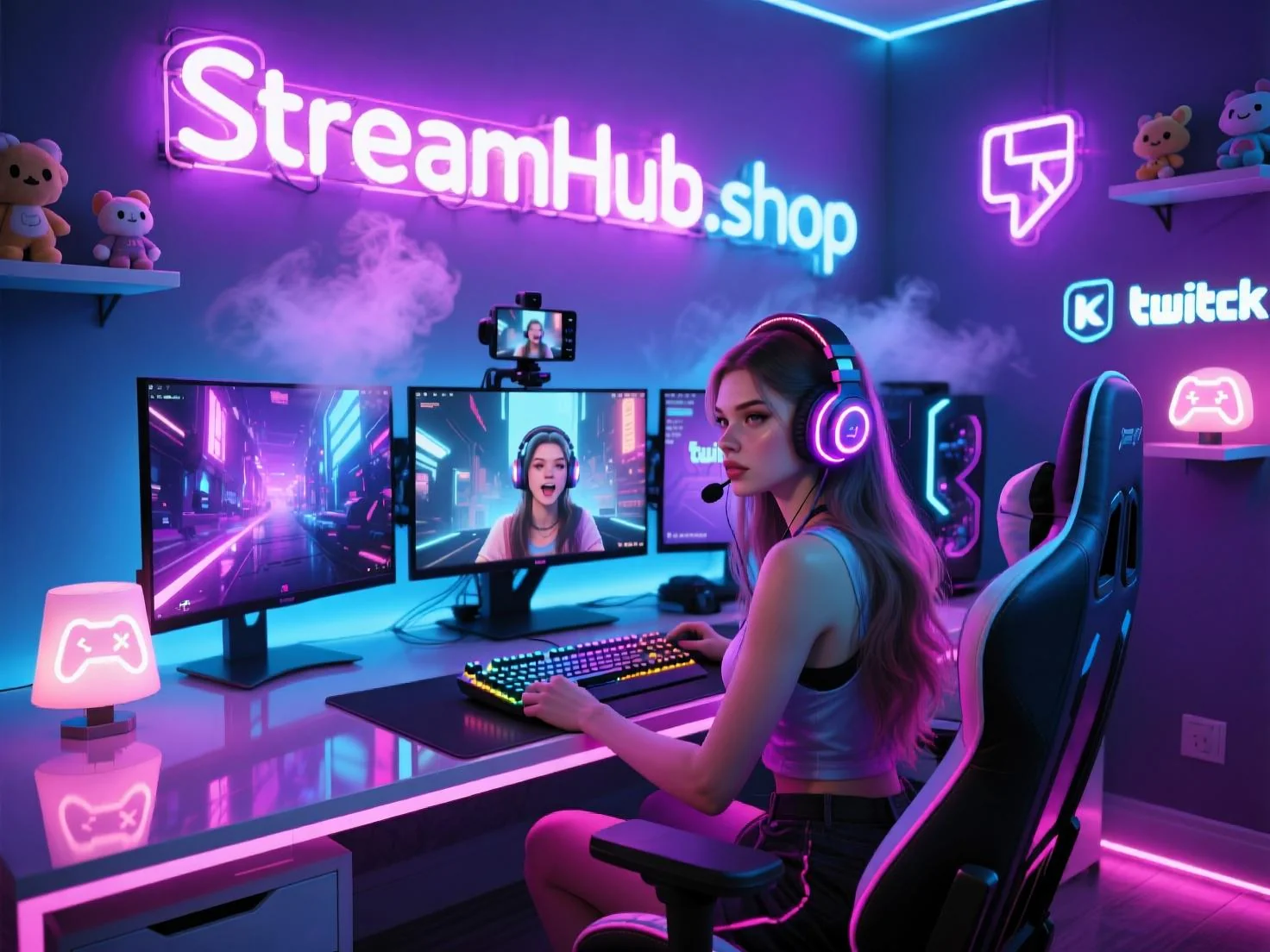
Crafting Visual Impact: Key Design Principles in Practice
Once you understand the mission, you can apply design principles to achieve it. You don't need a design degree, just an understanding of how these elements guide the viewer's eye and create a cohesive look.
Hierarchy and Layout: Guiding the Eye
Viewers scan information. Your overlay should subtly direct them to the most important elements first. This means larger, brighter, or more centrally placed elements grab attention, while secondary information fills in around it.
- Primary Focus: Your gameplay or main content window. This should always be the largest and clearest element.
- Secondary Focus: Facecam, chat, alerts (new follower, subscriber, donation). These need to be prominent but not compete with the primary focus.
- Tertiary Focus: Social media handles, static stream titles, current song info. These can be smaller, less vibrant, and occupy less central space.
Practical Scenario: The "Interactive Storyteller"
Imagine a streamer, "Luna," who plays narrative-heavy indie games and focuses on engaging with her chat about the story. Her primary focus is the game. Her secondary focus is her facecam (to show reactions) and a highly visible, easy-to-read chat box. Tertiary elements include subtle follower/sub goals and her social media handle, placed discreetly in a corner. Her overlay uses a warm, muted color palette that doesn't clash with diverse game environments. Animations are minimal – a subtle glow around her webcam when she makes an important point, and a clean, unobtrusive alert for new followers. This design ensures the game's story remains central, but viewer interaction is seamless.
Color, Typography, and Whitespace: The Aesthetics Toolkit
- Color Palette: Limit yourself to 3-5 main colors (including black/white/grays). Use a primary color for highlights, a secondary for text, and an accent for alerts. Use streamhub.shop to find color inspiration or pre-made palettes. Avoid clashing colors or too many bright hues competing for attention.
- Typography: Choose 1-2 legible fonts. One for headers/alerts, another for general text (like chat or current song). Ensure they are readable at smaller sizes and against various backgrounds. Fancy, decorative fonts are often hard to read quickly.
- Whitespace (or "Negative Space"): This is the empty space around your elements. It's crucial! Don't cram everything together. Whitespace gives elements room to breathe, making your overlay feel clean, professional, and less overwhelming.
The Tools of the Trade: Choosing Your Design Arsenal
There's a wide spectrum of tools, from free web-based editors to professional software. Your choice depends on your budget, skill level, and desired complexity.
- Browser-Based Editors (e.g., Canva, StreamElements/Streamlabs Overlay Editor):
- Pros: Often free or low cost, easy to use, pre-made templates, quick iteration. StreamElements/Streamlabs built-in editors are perfect for integrating alerts and widgets directly.
- Cons: Limited design flexibility, less control over complex animations, can feel generic if not customized heavily.
- Best for: Beginners, those on a budget, creators who prefer a quick, functional setup with minimal custom graphic creation.
- Vector Graphics Software (e.g., Adobe Illustrator, Affinity Designer, Inkscape):
- Pros: Scalable graphics (won't pixelate), precise control, ideal for creating logos, icons, and clean graphic elements.
- Cons: Steeper learning curve, paid software often (Inkscape is free), not ideal for photo manipulation or complex textures.
- Best for: Creating crisp, professional-looking static elements, logos, and custom stream branding.
- Raster Graphics Software (e.g., Adobe Photoshop, GIMP, Photopea):
- Pros: Excellent for photo editing, textured backgrounds, complex visual effects, and manipulating pixel-based images.
- Cons: Can create large file sizes if not optimized, less ideal for sharp lines and scalable text unless combined with vector techniques.
- Best for: Detailed backgrounds, high-quality facecam borders, and intricate visual effects.
- Animation/Video Software (e.g., Adobe After Effects, DaVinci Resolve, Blender):
- Pros: Full control over dynamic elements, transitions, animated alerts, and stingers. Creates highly professional and engaging motion graphics.
- Cons: Steepest learning curve, resource-intensive, often paid, requires knowledge of animation principles.
- Best for: Advanced creators wanting custom animated elements, transitions, and high-impact visual effects. (Remember performance considerations here!)
Community Insights: Common Overlay Roadblocks
Across various creator communities, a few recurring pain points emerge when discussing custom overlays:
- The "Clutter Trap": Many creators struggle with over-stuffing their overlay. They feel the need to display every piece of information (follower count, sub count, bits, top donator, latest follower, current song, social media, game title, etc.) all at once. This often leads to an overwhelming and distracting visual experience for viewers, making it hard to focus on the actual content.
- Performance Headaches: A common complaint is that custom overlays, especially animated ones, cause stream performance issues. Frame drops, lag, and even software crashes are reported, particularly from creators who don't optimize their assets (e.g., using high-resolution PNGs for everything instead of WebM for animations or compressing images).
- Brand Inconsistency: Creators sometimes find it challenging to maintain a consistent visual brand. They might use one style for their overlay, another for their social media banners, and yet another for their emotes. This disjointed approach makes it harder for viewers to instantly recognize their content.
- "Analysis Paralysis" with Tools: The sheer number of design tools available often leaves creators feeling paralyzed. They're unsure which software to commit to, fearing they'll invest time in learning the wrong one or that their skills won't be sufficient to achieve their vision.
Future-Proofing Your Look: When and How to Update
Your overlay isn't a "set it and forget it" item. Your stream evolves, and so should its visual identity. Regularly reviewing and potentially updating your overlays keeps your brand fresh and relevant.
- Content Shifts: Are you playing different genres of games? Have you started a new segment (e.g., Just Chatting, cooking, creative stream) that requires a different layout or aesthetic? Your overlay should adapt to best suit your current content.
- Brand Evolution: Has your personal brand matured? Have your colors or primary fonts changed? Your overlay is a key visual representation; ensure it's up-to-date with your current identity.
- Performance Optimization: If you upgrade your PC, you might be able to incorporate more complex animations without performance hits. Conversely, if you notice frame drops, it's time to re-evaluate asset sizes and animation efficiency.
- Viewer Feedback: Pay attention to subtle cues from your chat or community. Do viewers complain about not being able to read something? Do they suggest elements are too distracting? Take feedback constructively.
- Seasonal/Event Changes: Consider minor, temporary adjustments for holidays, special events, or charity streams. A subtle holiday border or event-specific alert can add festive flair without a full rebrand.
When you do update, apply the same core principles: prioritize clarity, reinforce your brand, and maintain performance. A successful custom overlay is a living part of your stream, evolving as you do.
2026-04-13