You've got the mic, the camera, and the drive to go live. Now comes the tech that actually *makes* the stream happen: your streaming software. For many, the choice boils down to two giants: Streamlabs Desktop and OBS Studio. They both get the job done, but they cater to slightly different creators. This guide will help you cut through the noise and pick the one that actually fits your workflow, not just the one that's more popular.
Finding Your Software Sweet Spot
Let's be honest, staring at feature lists can be exhausting. The real difference between Streamlabs Desktop and OBS Studio often comes down to your current stage as a creator and what you prioritize. Are you just starting out and want a polished, all-in-one experience? Or are you a seasoned pro who values granular control and a customizable setup, even if it means a steeper learning curve?
Think of it this way: Streamlabs Desktop aims to be your friendly, pre-packaged streaming studio. It bundles a lot of common features and integrations right out of the box, making it easier to get a professional-looking stream up and running quickly. OBS Studio, on the other hand, is the powerful, open-source engine. It’s incredibly flexible and robust, but it often requires more tinkering and external tools to achieve the same polished look.
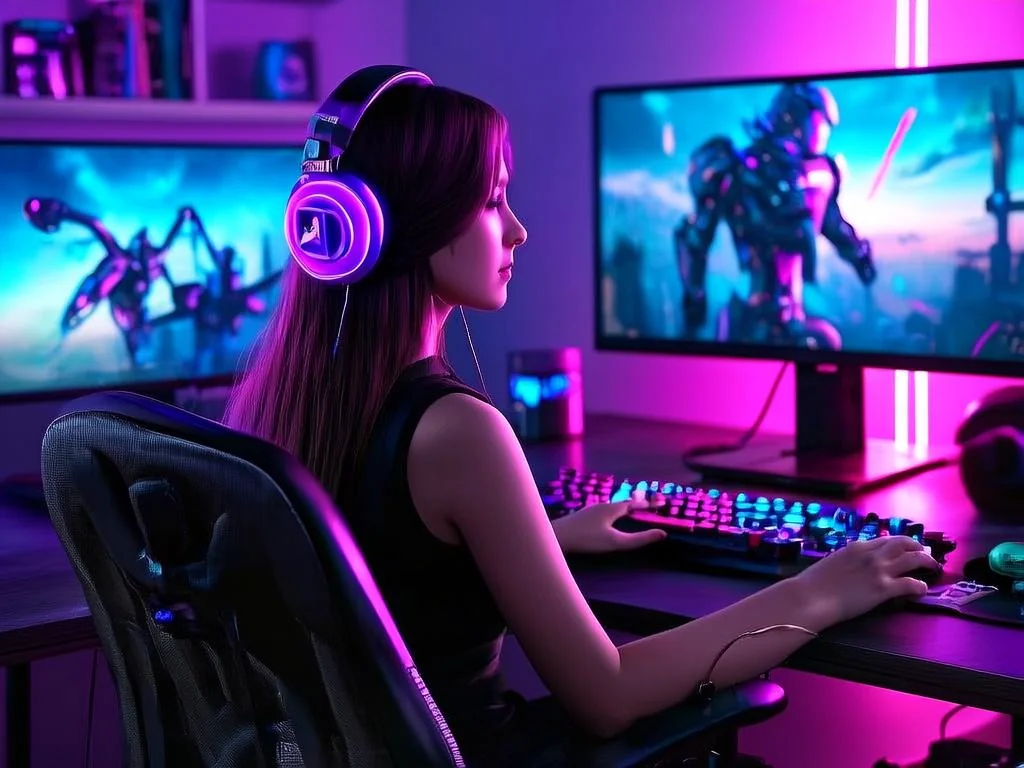
The core functionality for both is recording and broadcasting your screen, webcam, and audio. Where they diverge is in their user interface, built-in features, and extensibility. Streamlabs Desktop often feels more intuitive for beginners due to its integrated themes, alerts, and chat overlays. OBS Studio, while having a more spartan default interface, opens up a world of customization through plugins and a deeper understanding of its scene and source management.
A Practical Scenario: The "Just Launched" Streamer
Imagine Sarah, a new streamer excited to launch her gaming channel. She's spent hours researching games, designing a simple logo, and planning her content. She needs her streaming software to be straightforward. She wants to add her webcam, game capture, and some basic alerts (like "new follower!") without a massive headache.
For Sarah, Streamlabs Desktop is likely the better initial choice. Its guided setup, pre-designed themes that include overlays and alerts, and integrated tipping/donation features mean she can get a visually appealing stream running in under an hour. She can focus on playing and interacting, rather than wrestling with complex software configurations. If she later finds she needs something more specialized, she can always explore OBS Studio.
The Community Pulse: Common Gripes and Glorifications
While direct quotes are out, we can observe common patterns in creator discussions. Many newer streamers praise Streamlabs Desktop for its ease of use and the "all-in-one" feel, particularly for those who aren't technically inclined. They appreciate not having to hunt for separate alert systems or overlay packages.
Conversely, experienced streamers often gravitate towards OBS Studio for its raw power and lack of proprietary hooks. The common sentiment is that OBS Studio is the "true" open-source standard, offering unparalleled control over every aspect of the stream. Users frequently mention the vast plugin ecosystem as a major draw, allowing for highly specific functionalities that might not be available or as well-integrated in Streamlabs Desktop. The flip side of this flexibility, however, is that it can require significant time investment to learn and set up, and troubleshooting can sometimes be more complex due to the sheer number of variables and potential plugin conflicts.
Making Your Choice: A Quick Decision Framework
Here's a simplified way to think about which software might suit you best right now:
- Are you brand new to streaming and want to get live quickly with a decent look? Prioritize Streamlabs Desktop.
- Do you value an integrated, user-friendly interface with built-in themes and alerts? Streamlabs Desktop leans this way.
- Do you prefer maximum control and are willing to invest time in learning and configuration? OBS Studio is your playground.
- Do you plan to use a wide array of advanced plugins and custom scripts? OBS Studio offers the deepest integration.
- Are you concerned about software resource usage? While both can be resource-intensive depending on settings, many creators report OBS Studio, when optimized, can be slightly lighter. Streamlabs Desktop's bundled features can add overhead.
It’s also worth noting that you don’t have to commit forever. Many streamers start with one and switch to the other as their needs evolve. The core concepts of scenes, sources, and audio mixing are transferable.
What to Review Next
Once you've made your initial choice, don't just set it and forget it. Your streaming setup is dynamic. Every few months, or whenever you notice a performance dip or a new feature you’re curious about, take a moment to:
- Check for Software Updates: Both Streamlabs Desktop and OBS Studio are regularly updated with new features and bug fixes. Staying current is crucial for stability and performance.
- Review Plugin Compatibility (for OBS Studio users): If you rely on plugins, ensure they are still supported and compatible with the latest OBS version. Sometimes, plugin updates can introduce new settings or even break functionality.
- Monitor Performance: Is your stream lagging? Is your CPU usage spiking? Revisit your encoder settings, resolution, and frame rate. Both software packages have extensive settings that can be tweaked for better performance.
- Explore New Themes/Integrations (for Streamlabs Desktop users): Keep an eye on new overlay packages or integrated services that might enhance your stream's visual appeal or monetization.
Your streaming journey is a marathon, not a sprint. The tools you use should adapt with you. Take the time to understand your chosen software's capabilities and don't be afraid to revisit your decision as you grow.
2026-04-09