You've picked StreamElements as your go-to for stream customization, which is a smart move for keeping things professional and engaging without breaking the bank. But diving into overlays, alerts, and chatbots can feel like navigating a maze. This guide cuts through the noise, focusing on getting you set up effectively, not just listing every single feature.
Crafting Your Visual Identity: Overlays That Work
Your overlay is the first thing many viewers see. It's your digital handshake. StreamElements offers a flexible system, but the key is simplicity and clarity. Think about what information is essential to display and what can be kept minimal. A cluttered overlay distracts from the main event: your content.
What to Prioritize:
- Essential Info: Stream title, current game/activity, social media handles (if brief), and perhaps your latest follower/subscriber – but don't cram it all in.
- Branding: Your logo, channel colors, and a consistent font. Keep it cohesive.
- Readability: Ensure text is large enough to read on various screen sizes and has enough contrast against your gameplay or webcam.
Many streamers fall into the trap of adding too many widgets. Resist the urge! A common pitfall is having alerts pop up over critical gameplay moments or chat becoming unreadable because an alert box is too large and opaque. Start with a clean template, then add elements one by one, checking how they look live.
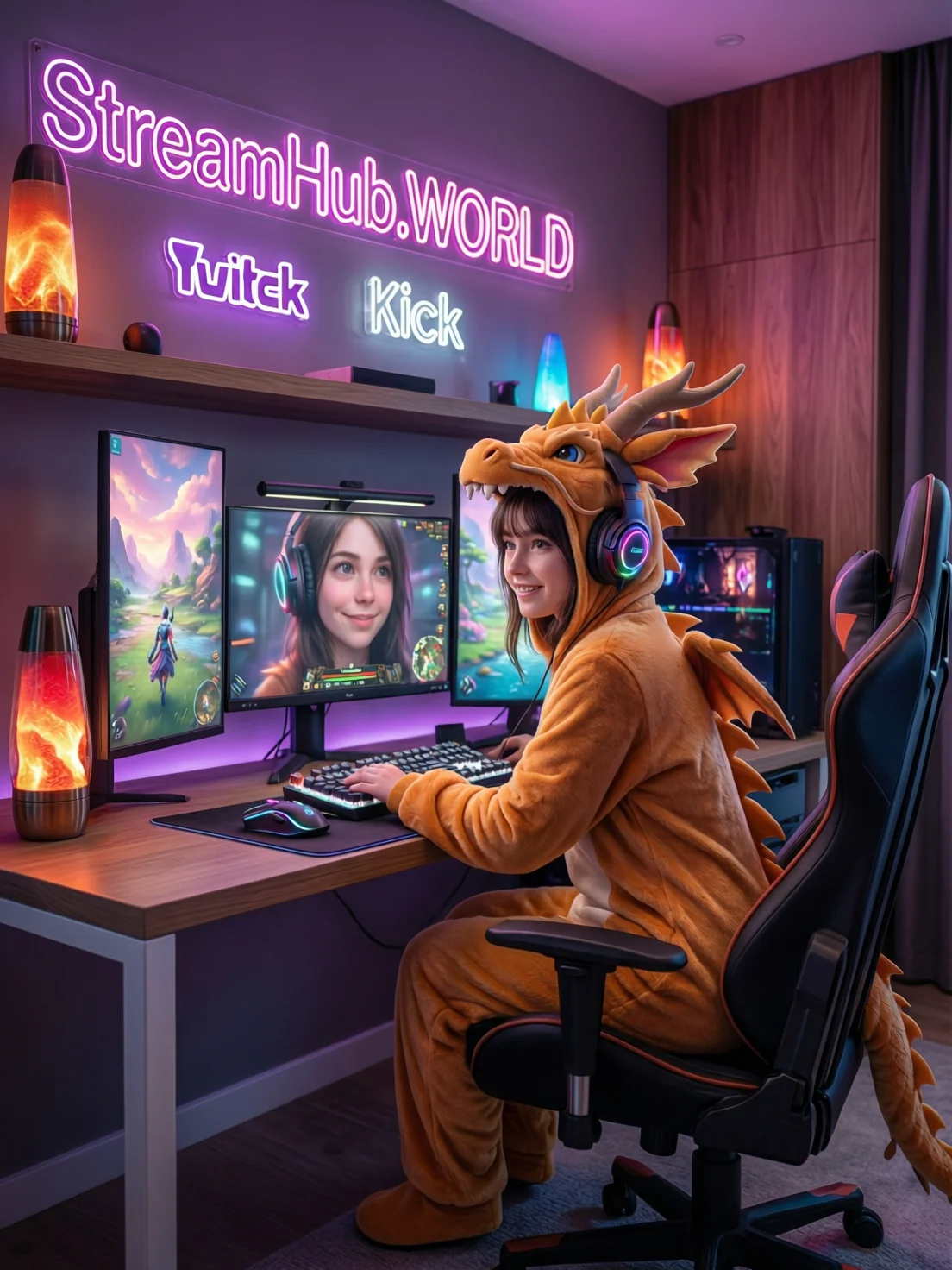
Scenario: The Overwhelmed Streamer
Imagine Sarah, a new streamer playing a fast-paced shooter. She initially loaded her overlay with follower goals, subscription goals, a big chat box, recent events, and a complex webcam frame. During her stream, she realized none of her viewers could see an important in-game notification because her overlay was too dominant. She later pared it down to a subtle border, a small webcam frame, and a minimal alert box that fades after a few seconds. This made a huge difference in viewer experience and her own focus.
Alerts That Engage, Not Annoy
StreamElements alerts are fantastic for acknowledging your community's support. The trick is to make them rewarding without being disruptive. Overly long, loud, or frequent alerts can pull viewers out of the experience.
Best Practices:
- Keep 'em Brief: Aim for alerts that last 5-10 seconds.
- Sound Design: Use distinct, pleasant sounds that aren't jarring. Test them!
- Visual Flair: Simple animations or graphics that tie into your branding are effective. Avoid anything that covers too much of the screen.
- Trigger Discipline: Consider setting minimum thresholds for certain alerts (e.g., only alert for subscriptions, not for new followers, if you get many).
Many creators use the default alerts and wonder why they feel generic. Customizing the visuals and sounds to match your channel's theme is crucial. A custom sound effect for a Tier 3 sub or a special animation for a new follower can make a big impact.
Chatbots: More Than Just Commands
The StreamElements chatbot (Bot) is your silent assistant. It can handle spam, greet new viewers, and run simple minigames, freeing you up to focus on your content and interactions.
Key Functions to Implement Early:
- Spam Filters: Essential for maintaining a clean chat. Configure caps, links, and excessive emotes filters.
- Welcome Messages: A simple, automated "Welcome [username]!" can make new viewers feel seen.
- Basic Commands: Set up commands for your schedule (`!schedule`), social links (`!socials`), or to explain a specific game mechanic (`!howto [topic]`).
A common mistake is over-automating chat. The bot should enhance, not replace, human interaction. Don't set up so many commands or filters that genuine conversation becomes difficult. The goal is to automate repetitive tasks, not to create a rigid, unresponsive chat environment.
Community Pulse: The "Too Much Stuff" Syndrome
A recurring theme among streamers, especially those new to StreamElements, is the temptation to add every available widget and alert option. This often leads to an overlay that's visually noisy, distracts from the gameplay or content, and can even feel overwhelming to viewers. Many creators report having to deliberately "prune" their overlays and alerts after realizing they were adding clutter rather than value. The consensus often points towards a "less is more" philosophy, especially in the early stages of setting up.
Getting Started Checklist
Here’s a quick run-through to get your core StreamElements setup solid:
- Overlay:
- [ ] Choose a clean base template or start from scratch with a simple frame.
- [ ] Add your logo and brand colors.
- [ ] Incorporate essential info widgets (title, game).
- [ ] Test visibility on screen during live gameplay.
- Alerts:
- [ ] Select or create custom alert graphics/animations.
- [ ] Choose unique, non-jarring alert sounds.
- [ ] Set alert durations to 5-10 seconds.
- [ ] Test all alert types (new follower, sub, etc.).
- Chatbot:
- [ ] Enable and configure basic spam filters (caps, links).
- [ ] Set up a simple welcome message.
- [ ] Create 2-3 essential informational commands (e.g., !socials).
What to Re-check Regularly
2026-04-09
Your stream setup isn't a set-it-and-forget-it deal. As your channel grows and your content evolves, revisit your StreamElements configuration. Periodically:
- Review Alerts: Are they still relevant? Are they still engaging? Maybe it's time for a refresh if you've had a major branding change.
- Audit Commands: Are your chatbot commands still accurate and useful? Are there new questions your community frequently asks that could become a command?
- Overlay Performance: Does your overlay still feel clean? With new games or content types, you might find that certain elements obscure important on-screen information. Don't be afraid to simplify.
- Platform Updates: Keep an eye on official StreamElements announcements for new features or changes that might benefit your stream.