You've got a killer concept, a solid mic, and a growing community. But when you look at your stream, something feels… off. Those default StreamElements overlays, while functional, don't quite scream 'you'. You're ready to ditch the generic look and inject some personality, some 'brand DNA,' into every visual element, from your starting screen to those celebratory alerts. It's not just about aesthetics; it's about creating an immersive, memorable experience for your viewers.
Your Overlay Isn't Just Background Noise: It's Your Brand
Moving beyond StreamElements' default templates is the first step towards a truly unique stream. Think of your overlays not as mere decorations but as an integral part of your visual identity. This means approaching them with the same intentionality you'd give your social media profiles or channel art.
Start with a core theme. Are you high-energy and chaotic, or chill and minimalist? Do you lean into retro nostalgia, futuristic tech, or cozy cottagecore? This theme should dictate your choices in color palettes, fonts, and graphic styles. A consistent color palette (2-4 main colors, plus neutrals) and a maximum of two complementary fonts (one for headers, one for body text) are crucial for visual harmony. Tools like Adobe Color or Coolors can help you build a palette, and Google Fonts offers countless free options.
When customizing elements like chat boxes, event lists, or webcam frames, resist the urge to use every animation or gradient available. Subtlety often wins. A clean, legible chat box with your brand colors is more effective than one that distracts with excessive animations. Your overlay should enhance the viewing experience, not compete with your content.
Alerts That Hit Different (In a Good Way)
Alerts are the celebratory moments of your stream – follows, subs, donations, raids. They need to be noticeable and exciting, but not so intrusive they drive viewers away. This is where custom visuals and sounds truly shine. StreamElements gives you deep control over these, allowing you to upload custom images, GIFs, and sounds, and fine-tune their timing and animation.
Mini-Scenario: The Retro Arcade Streamer
Imagine "PixelPusher," a streamer focused on retro arcade games. Their default StreamElements alerts felt modern and sleek, completely clashing with their 8-bit aesthetic. PixelPusher decided to overhaul them:
- Follow Alert: Instead of a generic star, they uploaded a custom pixel-art "PLAYER 2 JOINED!" GIF. The alert sound was a classic 8-bit "coin collected" jingle, short and sweet.
- Subscription Alert: For subs, a more elaborate animation: a pixelated "LEVEL UP!" graphic with a classic arcade "fanfare" sound effect. They even added a custom text animation that looked like old-school arcade marquee text.
- Raid Alert: A dramatic, blocky "INVASION!" graphic with a low-res explosion sound, perfectly encapsulating the chaotic fun of a raid.
PixelPusher tested these alerts rigorously, ensuring they didn't block crucial gameplay elements for too long and that the sounds weren't overly loud or repetitive. The result was a cohesive, immersive experience that delighted their viewers and reinforced their brand.
{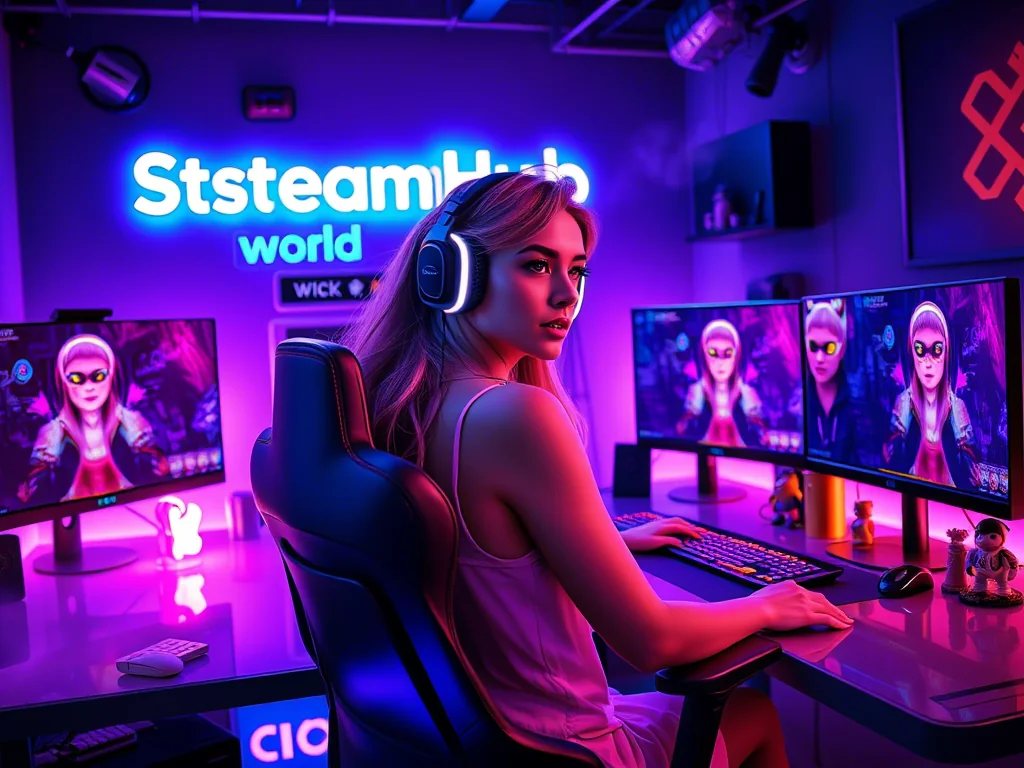 }
}
When designing your alerts:
- Visuals: Use high-quality GIFs or static images. Ensure they're relevant to the alert type and your stream's theme. Keep GIF file sizes reasonable to avoid lag.
- Sounds: Source clear, high-quality audio files. Keep them short (under 5 seconds) and distinct. Make sure they're not too loud or jarring. Test them at various stream volumes.
- Animations: StreamElements offers entry and exit animations. Use them to make alerts feel dynamic, but avoid excessive bouncing or spinning that can be dizzying.
- Timing: Adjust how long the alert stays on screen. Too short, and viewers miss it; too long, and it becomes an annoyance. Generally, 5-8 seconds is a good sweet spot.
Overlay Overload? Taming Your StreamElements Canvas
As you add more custom elements, your StreamElements editor can quickly become cluttered. Effective organization is key to managing complexity and ensuring optimal performance.
Scene Management: Don't try to cram everything into one "main" overlay. Create separate StreamElements overlays (which translate to browser sources in your streaming software) for different scenes:
- Starting Soon: Animated elements, countdown, social media.
- Main Gameplay/Just Chatting: Webcam frame, chat box, alerts, event list.
- BRB/Ending Screen: Looping animation, social media, music player.
This approach minimizes the number of active elements at any given time, reducing potential performance impact.
Layer and Group Management: Within each StreamElements overlay, use the layer list on the left to organize your elements. Rename layers descriptively (e.g., "Webcam Border," "Follower Alert," "Main Chat"). Use the grouping feature to combine related items, like all the elements of your webcam frame (border, name, social icon). This makes it easier to select, move, and adjust properties without accidentally affecting other elements.
Testing is Non-Negotiable: Always test your overlays after making significant changes. Use StreamElements' "Emulate" feature for alerts and then, critically, test them live on your stream (to a private unlisted YouTube stream or Twitch VOD-only stream if you prefer). Check for:
- Correct positioning and sizing.
- Legibility of text (chat, event list).
- Alert triggers and timing.
- Sound levels relative to your game audio and voice.
- Overall performance (no dropped frames, stuttering).
The Creator Conundrum: Common StreamElements Design Hurdles
Many creators find themselves in similar design predicaments when customizing their StreamElements overlays. It's easy to get overwhelmed by the sheer number of options or to unintentionally create a visually noisy stream.
- "Too Many Moving Parts": A frequent concern is that overlays start to feel cluttered or busy. This often happens when creators try to incorporate too many animated elements, fast-paced alerts, or complex graphics all at once. The solution usually lies in simplification and prioritizing key information. Ask yourself: "Does this element truly enhance the viewer experience, or is it just 'there'?"
- Inconsistent Styling: Creators often struggle to make different overlay elements look like they belong together. They might use one font for their chat, a different one for their alerts, and yet another for their goal widget. The key here is adherence to a pre-defined brand guide (even if it's just a mental one) covering fonts, colors, and a general aesthetic.
- Performance Impact: A common worry, especially for streamers with mid-range PCs, is that custom overlays will cause frame drops or stream lag. This typically stems from using excessively large image files, unoptimized GIFs, or too many complex animations running simultaneously. Optimizing asset sizes and limiting active animated elements can significantly mitigate this.
- Alert Fatigue: While custom alerts are exciting, some creators notice their viewers getting tired of them, especially if they're too long, too loud, or trigger too frequently. This points to the importance of refining alert timing, keeping sounds concise, and ensuring the visuals are engaging but not overbearing. Sometimes, less is genuinely more.
Evolution, Not Revolution: Keeping Your Overlays Fresh
Your stream identity isn't static, and neither should your overlays be. Treat them as living elements that evolve with your content and community. Regularly reviewing and updating them ensures they remain relevant and polished.
Your Overlay Maintenance Checklist:
- Seasonal/Event Updates: Are holidays or special stream events approaching? Consider temporary themed alerts, webcam frames, or starting screens. For example, a spooky theme for Halloween or festive elements for winter holidays.
- Brand Refresh: Have you updated your channel art, logo, or social media banners? Ensure your StreamElements overlays reflect these changes to maintain consistency across all your platforms.
- Performance Check: Periodically review your stream's performance. Are you dropping frames? Is your CPU usage higher than it should be? Unoptimized overlays can be a culprit. Look for large image files, complex GIFs, or too many active animations that could be taxing your system.
- Viewer Feedback: Pay attention to what your community says (or doesn't say). Are alerts too loud? Is text hard to read? Don't be afraid to ask for direct feedback during a "stream health check" segment.
- Functionality Test: Do all your alerts trigger correctly? Are your goal bars updating? Test these periodically, especially after StreamElements updates or major changes to your streaming setup.
- Software Compatibility: Ensure your StreamElements browser sources are working correctly with the latest version of your streaming software (OBS Studio, Streamlabs Desktop, etc.). Sometimes updates can cause minor hiccups.
2026-03-28