In the fiercely competitive landscape of live streaming, optimizing every facet of your setup is paramount to success. While a powerful gaming PC and a high-quality main display are often the first investments, the strategic addition of a second monitor frequently emerges as the unsung hero, transforming a chaotic single-screen experience into a streamlined, professional broadcast station. This comprehensive guide delves into why a secondary display is not just a luxury but a necessity for serious streamers, offering expert picks and actionable setup tips to maximize your efficiency and audience engagement.
A multi-monitor configuration empowers creators to manage their intricate workflows with unprecedented ease, allowing for real-time interaction, meticulous stream management, and seamless multitasking without ever disrupting the primary gaming or content creation window. From monitoring chat to managing alerts and fine-tuning OBS settings on the fly, a second screen is the central nervous system of a truly optimized streaming rig.
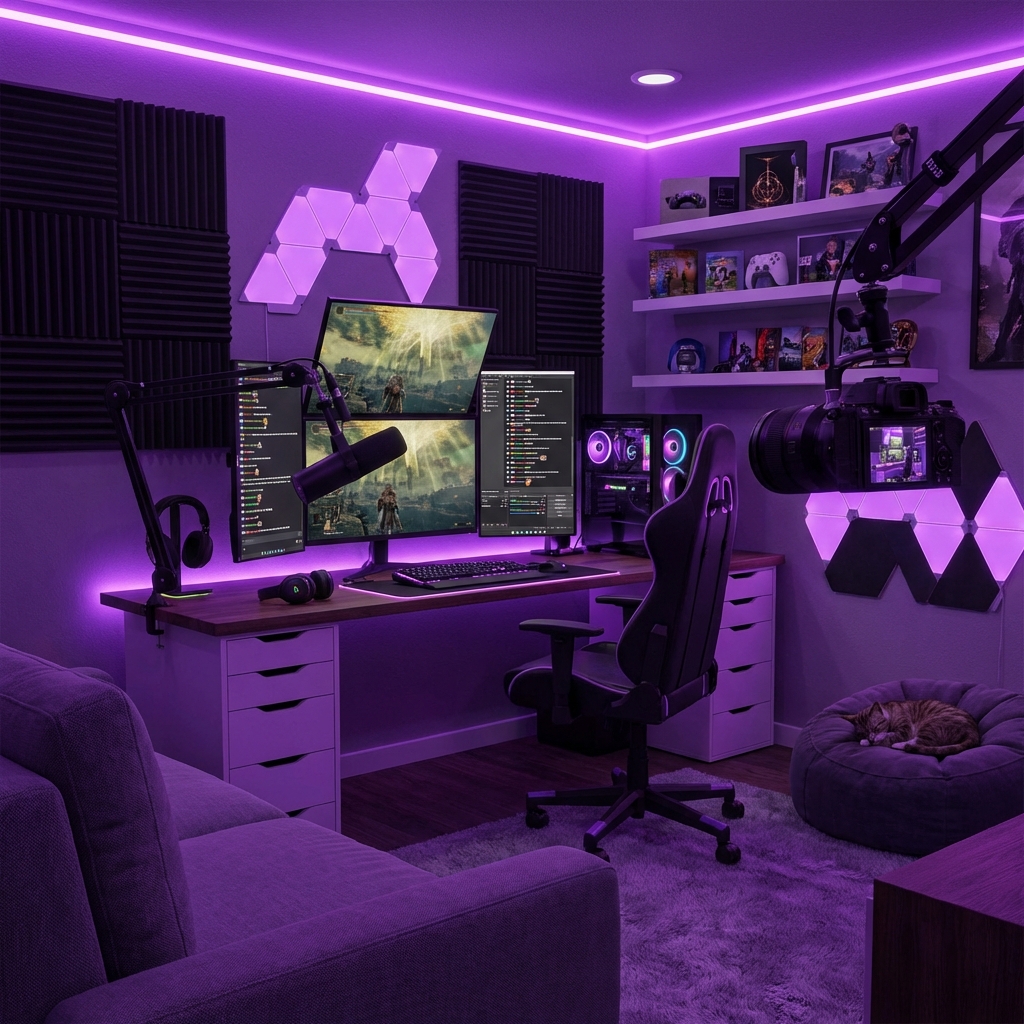
Why a Second Monitor is Indispensable for Streamers
The benefits of incorporating a second monitor into your streaming setup are manifold, extending beyond mere convenience to genuinely enhance the quality and professionalism of your broadcasts. Here’s a detailed breakdown of its critical roles:
- Real-time Chat Monitoring: Perhaps the most crucial function, a dedicated screen for your stream chat allows you to engage with your audience continuously. This fosters a vibrant community, encourages interaction, and makes viewers feel connected, all without having to alt-tab out of your game.
- Stream Software Management: Keep your Open Broadcaster Software (OBS) Studio, Streamlabs Desktop, or other streaming applications visible at all times. This means instant access to scene switching, audio mixer adjustments, source management, and monitoring your stream's health indicators (bitrate, dropped frames) without overlaying them onto your primary content.
- Alerts and Notifications: Display your follower, subscriber, donation, and raid alerts on the secondary screen. This ensures you acknowledge your community's support promptly and appropriately, adding a personal touch that resonates with viewers.
- Discord and Communication: Stay connected with co-streamers, moderators, or friends in Discord or other communication platforms. A second screen prevents you from missing critical messages or coordination efforts during a live broadcast.
- Content Research and Reference: Whether you're streaming a new game and need to look up a guide, referencing notes for a podcast, or displaying source material for a reaction video, a secondary display keeps all necessary information readily accessible.
- System Performance Monitoring: Tools like MSI Afterburner or HWMonitor can be displayed on your second screen, offering real-time insights into your CPU and GPU temperatures, usage, and frame rates. This helps diagnose potential performance issues before they impact your stream quality.
- Media Playback and Soundboards: Manage background music, sound effects, or video clips from a separate screen, ensuring smooth transitions and precise control over your broadcast's audio-visual elements.
- Reduced Alt-Tabbing: The constant act of switching between applications on a single screen can be jarring for viewers, potentially causing game stutters or black screens during transitions. A dual-monitor setup eliminates this, providing a seamless viewing experience.
Key Considerations When Choosing Your Second Monitor
Selecting the right second monitor isn't as critical as choosing your primary gaming display, but certain factors will significantly impact its utility and your overall streaming experience. Here's what to keep in mind:
Panel Type: Balancing Visuals and Cost
- IPS (In-Plane Switching): Offers excellent color accuracy and wide viewing angles, making it ideal for displaying chat, alerts, or any visual content where clarity is key. Generally a good all-rounder for a secondary display.
- VA (Vertical Alignment): Known for superior contrast ratios and deep blacks. While good for media consumption, its viewing angles can be narrower than IPS, and response times might be slower, though often negligible for secondary use.
- TN (Twisted Nematic): Fastest response times and highest refresh rates, but with the poorest color reproduction and narrowest viewing angles. While dominant in competitive gaming displays, it's usually not recommended for a secondary monitor due to its visual limitations unless budget is extremely tight.
Resolution and Screen Size: Practicality vs. Pixel Density
For a secondary monitor, 1080p (Full HD) is often the sweet spot. It's affordable, requires less GPU power, and is perfectly adequate for displaying text, chat, and most stream management tools. 1440p (QHD) can be beneficial if you need more screen real estate for multiple windows, while 4K (UHD) is generally overkill for a secondary streaming monitor unless you have a specific high-resolution workflow in mind or are matching a primary 4K display.
Screen sizes between 24 and 27 inches are most common. A 24-inch display offers a good balance of size and desk footprint, while a 27-inch monitor provides ample space without becoming unwieldy. Consider your available desk space and how much information you need to display simultaneously.
Refresh Rate and Response Time: Less Critical, Still Relevant
Unlike your primary gaming monitor where high refresh rates (144Hz+) and low response times (1ms) are crucial, these specifications are far less important for a secondary display. A standard 60Hz or 75Hz refresh rate with a 5ms or 8ms response time is perfectly sufficient for displaying static content, chat, or even a browser window. Investing in higher specs for a secondary monitor is usually unnecessary and adds to the cost.
Ergonomics and Mounting Options: Comfort and Flexibility
An adjustable stand that allows for height, tilt, swivel, and pivot (portrait mode) adjustments is highly valuable. Many streamers prefer to orient their secondary monitor vertically, especially for chat feeds. Look for VESA mount compatibility (100x100mm or 75x75mm) if you plan to use a monitor arm, which offers superior flexibility and frees up desk space.
Connectivity: Ensuring Compatibility
Most modern monitors offer HDMI and DisplayPort inputs. Ensure your graphics card has enough available ports of the correct type. Some monitors also feature USB-C, which can be convenient for laptops or specific setups that support video output over USB-C. Always double-check your GPU's output capabilities against the monitor's input options.
Price Point: Budgeting for Efficiency
A good secondary monitor doesn't need to break the bank. You can find excellent 1080p IPS monitors for under $200. If you opt for 1440p, expect to pay a bit more, typically in the $250-$400 range. Define your budget and prioritize features based on your specific secondary use cases.
Best Picks for a Second Streaming Monitor
While specific models change frequently, here are categories and types of monitors that consistently offer excellent value and performance as secondary displays for streamers.
| Category/Use Case | Recommended Specs | Example Models (Illustrative) | Approx. Price Range | Pros for Streaming |
|---|---|---|---|---|
| Budget-Friendly Workhorse (Chat, OBS, Web Browsing) |
24-27" 1080p IPS, 60-75Hz, 5-8ms, VESA mountable. | Dell P2422H, HP E24 G5, Acer Nitro VG240Y | $150 - $250 | Affordable, good viewing angles, clear text, minimal GPU strain. Excellent for vertical orientation. |
| Mid-Range Productivity Hub (Multiple Apps, Design Work, Detailed Monitoring) |
27" 1440p IPS, 60-75Hz, 5ms, VESA mountable, good stand ergonomics. | Dell UltraSharp U2723QE, LG 27QN600-B, ASUS ProArt PA278CV | $280 - $450 | More screen real estate, sharper text/images, ideal for multi-window layouts, better color accuracy. |
| Premium Multitasker / Ultrawide (Extensive Dashboards, Content Creation, 4K Match) |
34" Ultrawide 1440p IPS or 27-32" 4K IPS, VESA mountable. | LG 34WP65C-B, Dell U3223QE, Gigabyte M34WQ | $400 - $800+ | Vast screen space for complex layouts, professional color accuracy, immersive for co-streaming content. |
Setting Up Your Dual Monitor Stream Station
Once you've acquired your second monitor, proper setup is crucial for a seamless and comfortable streaming experience. Follow these steps for an optimal configuration:
1. Physical Setup and Ergonomics
- Desk Space Assessment: Ensure your desk can accommodate two monitors comfortably. Measure your desk's width and depth.
- Positioning: Your primary monitor should be directly in front of you, at eye level. The secondary monitor can be placed to its left or right, or even above/below, depending on your preference and desk space. Many streamers prefer the secondary monitor in portrait mode (rotated 90 degrees) for viewing chat, as it maximizes vertical screen real estate for scrolling.
- Monitor Arms (Recommended): Investing in a dual monitor arm or two single arms can significantly improve ergonomics and free up desk space. They allow for precise positioning, rotation, and better cable management.
- Cable Management: Use cable ties, sleeves, or raceways to keep power and display cables tidy. This prevents clutter, improves aesthetics, and reduces the risk of accidental disconnections.
2. Connectivity and Drivers
- Connect Cables: Use HDMI, DisplayPort, or USB-C cables to connect your secondary monitor to your graphics card. Ensure a secure connection at both ends.
- Power On: Plug in the monitor's power cable and turn it on.
- Driver Updates: Ensure your graphics card drivers are up to date. Outdated drivers can lead to display detection issues or suboptimal performance. Visit NVIDIA, AMD, or Intel's website for the latest drivers.
3. Software Configuration (Windows/macOS)
- Windows:
- Right-click on your desktop and select "Display settings."
- In the "Rearrange your displays" section, you'll see boxes representing your monitors. Drag them to match their physical arrangement.
- Select your primary monitor (usually the one you game on) and check "Make this my main display."
- Choose how your displays should behave: "Extend these displays" is almost always the correct option for streaming, allowing you to drag windows between screens. "Duplicate these displays" mirrors content and is generally not useful for a secondary streaming monitor.
- Adjust resolution and scaling for each monitor as needed. For the secondary monitor, 100% or 125% scaling is usually fine for 1080p/1440p respectively.
- macOS:
- Go to System Settings (System Preferences) > Displays.
- The "Arrangement" tab allows you to drag and drop monitor icons to match their physical layout.
- Drag the white menu bar to the monitor you want as your primary display.
- Select "Extend display" for the secondary monitor.
- Adjust resolution and refresh rate as needed for each display.
Optimizing OBS/Streamlabs for Dual Monitors
Once your monitors are physically and system-wide configured, optimize your streaming software:
- Dock Placement: In OBS Studio or Streamlabs Desktop, you can "undock" various panels (Chat, Scenes, Sources, Audio Mixer, Stream Preview) and drag them onto your secondary monitor. Arrange them logically for quick access. A common setup places chat vertically, with stream health and audio mixer below.
- Separate Preview Window: If you prefer to keep your main OBS window on your primary screen, you can right-click the preview window and select "Windowed Projector (Scene)" or "Windowed Projector (Monitor)" to display a full-screen preview of your stream on your secondary monitor.
- Scene Switching Efficiency: Practice switching scenes on your secondary monitor to ensure smooth transitions without disrupting your primary gameplay.
A well-organized secondary monitor greatly enhances your ability to monitor your stream's performance and audience interaction. This detailed oversight is crucial when you are also strategizing for growth, perhaps by leveraging professional marketing tools. For instance, services like streamhub.shop can provide analytics and insights into your channel’s performance, and having a dedicated screen makes it effortless to keep these dashboards open and accessible as you stream, allowing for real-time strategic adjustments.
Advanced Tips for Dual Monitor Streamers
Beyond the basic setup, these advanced tips can further refine your dual-monitor streaming experience:
- Vertical Monitor Setup: As mentioned, rotating your secondary monitor to portrait mode (vertical) is extremely popular for chat. It allows you to see more chat messages without endless scrolling, improving engagement. Ensure your monitor stand supports pivot, or use a VESA-compatible monitor arm.
- Hotkey Customization: Utilize your streaming software's hotkey features for scene switching, muting audio, or starting/stopping your stream. This minimizes mouse movements and keeps you focused on your primary game. A dedicated stream controller like a Stream Deck can take this a step further.
- Power Management: Configure your secondary monitor to turn off after a period of inactivity to save power, especially if you're not always streaming.
- Color Calibration (If Applicable): If your secondary monitor is used for more than just chat (e.g., displaying reference images for art streams), consider calibrating its colors to match your primary display for visual consistency.
- System Resource Monitoring: Utilize software like HWiNFO64 or NZXT CAM on your secondary display to keep a constant eye on CPU/GPU temperatures, usage, RAM, and network performance. This helps identify bottlenecks or overheating issues before they impact your stream.
- Leveraging Productivity Software: Use the secondary display for note-taking applications, project management tools, or even a second web browser for quick research or managing overlays.
The ability to constantly monitor key metrics and dashboards on a secondary screen is invaluable. For streamers focused on growth, this means being able to actively track the impact of their strategies, including those implemented through professional platforms such as streamhub.shop. By seeing real-time data on audience engagement or follower growth, you can make informed decisions to refine your content and improve your overall broadcast quality.
Potential Pitfalls and How to Avoid Them
While a second monitor offers immense advantages, there are a few potential downsides and challenges to be aware of:
- Performance Impact: Running a second monitor, especially at higher resolutions, can slightly increase the load on your GPU. For most modern gaming PCs, this impact is minimal, particularly if the secondary monitor is only displaying static content or low-refresh-rate applications. If you notice performance drops, ensure your primary game is running in exclusive fullscreen (if possible) rather than borderless windowed mode.
- Desk Clutter: Two monitors inherently take up more space. Without proper cable management and potentially a monitor arm, your desk can quickly become messy. Invest in cable ties and routing solutions early on.
- Eyestrain and Ergonomics: Improper positioning of multiple monitors can lead to neck strain, headaches, and eyestrain. Ensure both monitors are at appropriate heights and viewing angles. Consider blue light filters if you stream for long hours.
- Display Latency Issues: Rarely, an older or lower-quality HDMI/DisplayPort cable can introduce latency or visual artifacts. Use high-quality, certified cables.
- Windows Cursor Drift: Sometimes, the mouse cursor can "drift" onto the secondary screen unexpectedly during intense gaming, causing you to click outside the game window. This is less common with modern games and setups but can be mitigated by playing in true fullscreen mode or using software like Dual Monitor Tools to lock the cursor to the primary screen.
Choosing Your Ideal Second Monitor: A Decision Matrix
To help you narrow down your choice, consider your primary use case for the secondary monitor:
| Primary Secondary Monitor Use Case | Recommended Monitor Type/Specs | Key Features to Prioritize |
|---|---|---|
| Dedicated Chat & OBS Panel | 24-27" 1080p IPS, 60-75Hz. Strong emphasis on VESA mount & portrait mode capability. | Good viewing angles, sharp text, affordable. Ergonomic stand or VESA for monitor arm. |
| Productivity, Reference & Stream Management | 27" 1440p IPS, 60-75Hz. Good color accuracy. | Ample screen real estate, clear visuals for multiple windows, good for detailed dashboards or design work. |
| Matching a High-End Primary Display | 27-32" 4K IPS or 34" Ultrawide 1440p/4K IPS. | High pixel density, consistent visual quality with primary monitor, professional aesthetics. |
| Budget-Conscious Entry Level | 22-24" 1080p TN or basic IPS, 60Hz. | Lowest cost, functional for basic chat/OBS. Compromises on viewing angles/color. |
The Role of a Second Monitor in Professional Streaming Growth
For aspiring and established streamers, a second monitor is more than just a convenience; it's an investment in professionalism and growth. The efficiency gained by having dedicated screens for chat, stream health, and essential tools directly translates into a more engaging and high-quality broadcast. You can react faster to chat, implement scene changes smoothly, and keep your stream free of distractions. This seamless professionalism is what differentiates hobbyists from serious content creators.
Furthermore, a dual-monitor setup empowers you to make data-driven decisions in real-time. By dedicating one screen to analytics dashboards, social media feeds, or even tools from professional channel growth services, you gain a panoramic view of your operation. This proactive approach to monitoring and adapting your content based on live feedback and strategic insights is fundamental for sustained growth. Whether you're tracking viewer retention or managing community interaction, a second monitor ensures you have all the necessary information at your fingertips, enabling you to optimize every aspect of your broadcast and amplify your reach effectively.
Frequently Asked Questions
Do I need a high refresh rate for my second monitor?
No, a high refresh rate (e.g., 120Hz or 144Hz) is largely unnecessary for a secondary streaming monitor. A standard 60Hz or 75Hz display is perfectly adequate for displaying chat, OBS, web browsers, and other non-gaming applications. Save your budget for a higher refresh rate on your primary gaming monitor.
Can I use an old TV as a second monitor?
While technically possible, using an old TV as a second monitor is generally not recommended. TVs often have higher input lag, lower pixel density (making text look blurry), and poorer color accuracy and viewing angles compared to dedicated monitors. They are also usually too large and bulky for comfortable desk use. For stream management, a proper monitor offers a far superior experience.
Will a second monitor impact my gaming performance?
The performance impact of a second monitor on your gaming PC is usually minimal, especially if your secondary display is only showing static content or low-refresh-rate applications. Modern GPUs are well-equipped to handle multiple displays. However, if you have a very old or low-end graphics card, or if you're trying to display demanding applications on both screens, you might notice a slight dip in frame rates. Playing games in true fullscreen mode (rather than borderless windowed) can also help mitigate any potential impact.
What's the best way to arrange two monitors?
The "best" arrangement depends on your personal preference and desk space. Common setups include side-by-side (primary in the center, secondary to the left or right) or stacked (primary below, secondary above). Many streamers prefer to orient their secondary monitor vertically (portrait mode) when using it for chat, as this allows more messages to be visible without excessive scrolling. Experiment with what feels most natural and ergonomic for you.
How much should I spend on a second monitor?
You can find excellent secondary monitors for streaming in the $150 to $300 range. This price point typically gets you a 24-27 inch 1080p or 1440p IPS display with good viewing angles and VESA mount compatibility, which is ideal for most streamers. Spending more is usually only necessary if you require higher resolutions, specific color accuracy for professional work, or desire a premium aesthetic to match a high-end main display.
Conclusion
Integrating a second monitor into your streaming setup is one of the most impactful upgrades you can make. It dramatically enhances your workflow efficiency, facilitates real-time audience engagement, and provides the necessary oversight to manage your broadcast like a seasoned professional. By carefully considering your needs and following our expert recommendations, you can transform your streaming station from a functional setup into a formidable, multi-tasking powerhouse. Embrace the dual-monitor advantage and watch your content, community, and overall streaming experience ascend to new heights.