In the dynamic world of live streaming, where audience engagement, technical oversight, and content delivery converge into a single real-time performance, the ability to multitask seamlessly is paramount. While a single, powerful primary monitor is essential for displaying your game or core application, a dedicated second monitor for streaming transforms your setup from a basic station into a sophisticated command center. This article will delve into why a dual monitor setup is not just a luxury but a crucial tool for serious content creators, offering expert recommendations for the best secondary displays and providing comprehensive guidance on optimizing your setup for unparalleled efficiency and audience interaction. Prepare to unlock a new level of control over your live broadcasts.
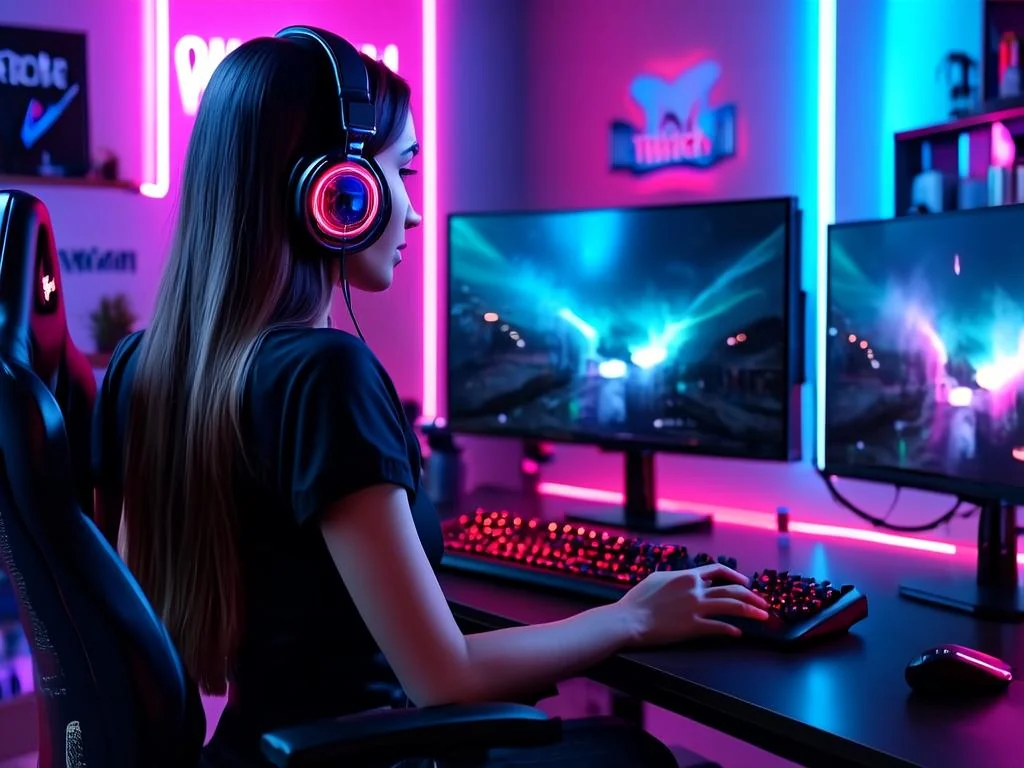
Why a Second Monitor is Indispensable for Serious Streamers
The pursuit of excellence in streaming demands more than just a captivating personality or high-tier gameplay; it requires meticulous management of numerous concurrent processes. A second monitor provides the critical visual real estate necessary to navigate this complexity with ease, directly impacting the quality and professionalism of your stream.
Enhanced Multitasking Capabilities
Imagine attempting to monitor your chat, adjust audio levels, switch scenes in OBS Studio, and keep an eye on your game's health bar—all on a single screen. It's a recipe for distraction and missed cues. A secondary display elegantly solves this by providing a dedicated space for critical applications. This separation allows your primary monitor to remain focused on the game or primary content, minimizing alt-tabbing and ensuring a smoother, more immersive experience for both you and your viewers.
Improved Stream Management and Oversight
The heart of any stream is its management software, be it OBS Studio, Streamlabs Desktop, or Twitch Studio. With a second monitor, your streaming application can be permanently visible, allowing for quick adjustments to scenes, sources, and audio mixers without obstructing your main content. You can monitor your bitrate, frame drops, CPU usage, and encoding status in real-time, proactively addressing technical glitches before they impact your broadcast quality. This level of immediate oversight is crucial for maintaining a professional and stable stream.
Deepened Audience Engagement
The ability to interact with your audience in real-time is a cornerstone of live streaming. A dedicated chat window on a second monitor means you're never more than a glance away from viewer comments, questions, and reactions. This constant visibility facilitates dynamic conversations, allows you to address specific viewers, and even respond to raid messages promptly, fostering a stronger sense of community and connection. Furthermore, having a dedicated space for your alerts (follows, subscriptions, donations) ensures you can acknowledge and thank supporters instantly, making them feel valued.
Efficient Content Creation and Research
Beyond live streaming, content creators often juggle multiple applications for planning, editing, and research. Whether you're pulling up game wikis, reviewing VODs, editing highlight clips, or browsing social media for content ideas, a second monitor significantly boosts productivity. For creative streams like art or design, it allows you to have reference images, tutorials, or client specifications visible alongside your main creative application.
Key Considerations When Choosing a Second Monitor
Selecting the right secondary display isn't about finding the most expensive or feature-rich option; it's about identifying a monitor that perfectly complements your primary setup and specific streaming needs without breaking the bank. Here are the crucial factors to weigh:
Size and Resolution
- Size: For a secondary monitor, sizes typically range from 24 to 27 inches. A 24-inch monitor is compact and often more budget-friendly, while a 27-inch model offers more screen real estate for multiple windows without feeling overwhelming. Larger sizes (e.g., 32 inches) can be used, but might dominate your desk space and are often overkill for simple chat/OBS monitoring.
- Resolution: 1080p (Full HD) is perfectly adequate for most secondary monitor tasks like displaying chat, OBS, or a web browser. It's less demanding on your GPU and generally more affordable. If you need sharper text, more workspace, or plan to occasionally use it for productivity tasks like video editing, 1440p (QHD) can be a worthwhile upgrade, though it will cost more. 4K is generally unnecessary for a secondary display, as its benefits are largely lost on static text and small windows.
Panel Type
- IPS (In-Plane Switching): Offers excellent color accuracy and wide viewing angles. This is ideal if you value vibrant colors, plan to do any photo/video editing on the secondary screen, or want consistent visuals from different viewing positions.
- VA (Vertical Alignment): Provides superior contrast ratios, leading to deeper blacks. While viewing angles are better than TN, they're not quite as wide as IPS. Good for media consumption.
- TN (Twisted Nematic): Known for fast response times and high refresh rates, TN panels are typically the least expensive but suffer from poor color reproduction and narrow viewing angles. While excellent for a primary gaming monitor, they are less critical for a secondary display where these attributes are less important.
Refresh Rate & Response Time
Unlike your primary gaming monitor where high refresh rates (144Hz+) and low response times (1ms) are crucial, these specifications are far less critical for a secondary display. A standard 60Hz or 75Hz refresh rate with a typical 5ms response time is perfectly sufficient for displaying chat, OBS, or web pages. Investing in a high refresh rate secondary monitor is generally an unnecessary expense unless you anticipate using it for specific high-motion tasks.
Connectivity Options
Ensure the monitor has ports compatible with your graphics card. Common connections include HDMI, DisplayPort, and sometimes USB-C (which can carry video, power, and data). Check your GPU's available outputs before purchasing to avoid needing adapters.
Ergonomics and Mounting
A monitor with an adjustable stand (height, tilt, swivel, pivot) can greatly improve comfort and flexibility in your setup. Crucially, look for VESA mount compatibility (e.g., 75x75mm or 100x100mm) if you plan to use a monitor arm or wall mount. VESA mounting is highly recommended for space-saving and ergonomic positioning.
Price and Budget
Secondary monitors are typically more budget-friendly than primary gaming displays. You can find excellent 1080p 60-75Hz IPS or VA panels in the $100-$200 range, which is often ideal for most streamers. Prioritize function over excessive features for your secondary screen to save budget for other streaming gear or even professional services like those offered by streamhub.shop for channel growth.
Best Second Monitor Picks for Streamers
Here’s a curated list of monitors that excel as secondary displays for streamers, balancing performance, features, and value. Our recommendations focus on monitors that provide excellent utility without demanding excessive budget or high-end gaming specs.
Table 1: Top Second Monitor Recommendations for Streamers
| Model | Size | Resolution | Panel Type | Key Features | Typical Price Range (USD) |
|---|---|---|---|---|---|
| Dell S2421H | 23.8 inches | 1920x1080 (FHD) | IPS | 75Hz, FreeSync, Dual HDMI, VESA compatible | $120 - $160 |
| HP E24 G5 | 23.8 inches | 1920x1080 (FHD) | IPS | Full ergonomic stand, USB hub, DisplayPort, HDMI, VESA | $180 - $220 |
| Acer Nitro VG240Y bmiix | 23.8 inches | 1920x1080 (FHD) | IPS | 75Hz, FreeSync, 1ms VRB, Dual HDMI, VESA | $130 - $170 |
| LG 27UP600-W | 27 inches | 3840x2160 (4K UHD) | IPS | 60Hz, HDR10, FreeSync, DisplayPort, HDMI, VESA (premium pick for productivity) | $280 - $350 |
| ASUS ProArt Display PA248QV | 24.1 inches | 1920x1200 (WUXGA) | IPS | Factory calibrated, Full ergonomic stand, USB hub, DP, HDMI, DVI, VESA (for color-critical tasks) | $200 - $250 |
Dell S2421H: A fantastic all-rounder, offering solid IPS performance at a very accessible price point. Its slim bezels and VESA compatibility make it easy to integrate into any setup.
HP E24 G5: While a bit pricier, the HP E24 G5 justifies its cost with a truly excellent ergonomic stand and a built-in USB hub, making it a powerful productivity tool alongside its streaming duties. Its DisplayPort connectivity is a plus for many modern GPUs.
Acer Nitro VG240Y bmiix: For streamers who might occasionally use their secondary display for console gaming or want a slightly snappier feel, the Acer Nitro offers 75Hz and 1ms VRB (Visual Response Boost) for minimal ghosting, all in an affordable IPS package.
LG 27UP600-W: This 4K monitor is a premium pick, primarily for streamers who also use their setup for high-resolution content creation, graphic design, or simply desire maximum screen real estate for intricate dashboards. While 4K is often overkill for chat, its crisp text and vibrant colors make it a joy for other tasks.
ASUS ProArt Display PA248QV: For artists, designers, or any streamer whose secondary monitor needs to display accurate colors (e.g., for showing reference images), the ProArt series is factory-calibrated and offers a 16:10 aspect ratio, providing a bit more vertical space than standard 16:9 1080p monitors.
Setting Up Your Dual Monitor Streaming System
Once you've chosen your ideal second monitor, the next step is to integrate it seamlessly into your existing streaming ecosystem. This involves both hardware connections and software configurations.
Hardware Connection
- Physical Placement: Position your second monitor adjacent to your primary display. Common configurations include side-by-side or stacked vertically (more on this later). Ensure it’s within your comfortable line of sight.
- Cable Connections:
- Video Cable: Connect your second monitor to an available port on your graphics card (e.g., HDMI, DisplayPort). If your GPU only has one of a certain type, ensure your primary monitor is using a different type or you have enough ports.
- Power Cable: Plug the monitor into a power outlet.
Software Configuration (Windows)
After physically connecting, your operating system needs to recognize and configure the new display.
- Windows Display Settings:
- Right-click on your desktop and select "Display settings."
- Scroll down to "Multiple displays." You should see both monitors represented by numbered boxes.
- Select "Extend these displays" from the dropdown menu. This allows your desktop to span across both monitors. Avoid "Duplicate these displays" as it mirrors your content, negating the benefit of a second screen.
- Arrange your displays: Drag the numbered boxes in the settings window to match the physical arrangement of your monitors on your desk. This ensures your mouse cursor moves naturally between screens. For example, if your secondary monitor is to the left of your primary, drag box "2" to the left of box "1".
- Identify: Click "Identify" to see which number corresponds to which physical monitor.
- Graphics Driver Settings:
- NVIDIA Control Panel: Right-click on your desktop, select "NVIDIA Control Panel." Go to "Set up multiple displays." Here you can fine-tune resolution, refresh rates for each monitor independently, and arrange them.
- AMD Radeon Software: Right-click on your desktop, select "AMD Radeon Software." Navigate to the "Display" tab to configure your multiple monitors.
Optimizing Your Workflow with Dual Monitors
The true power of a second monitor lies in how you utilize its space. Here's a common and effective setup:
- Primary Monitor: Dedicated to your game, application, or main content. Maximize its real estate for the highest quality visual experience for your viewers.
- Secondary Monitor: This is your control center. Allocate space for:
- OBS Studio/Streamlabs Desktop: Position your streaming software here, allowing you to see your scenes, sources, audio mixer, and stream preview.
- Stream Chat: A dedicated window for Twitch, YouTube, or Discord chat. Many streamers prefer this to be large and easy to read.
- Stream Alerts: Keep your alerts dashboard (e.g., Streamlabs, StreamElements) visible to acknowledge new follows, subs, donations, etc.
- Web Browser: For quick lookups, checking social media, or managing your stream dashboard.
- Monitoring Tools: Task Manager, network monitor, or game-specific companion apps.
- Virtual Desktops (Windows Key + Tab): Utilize Windows' virtual desktop feature to create multiple workspaces on your secondary monitor. For example, one virtual desktop for OBS and chat, another for a web browser and notes.
Advanced Tips for Dual Monitor Streamers
Beyond the basic setup, a few advanced strategies can further enhance your dual monitor streaming experience.
Vertical Monitor Setup
Mounting your secondary monitor in a vertical (portrait) orientation has become increasingly popular among streamers. This configuration is particularly excellent for:
- Chat Readability: A vertical monitor can display significantly more lines of chat history at once, making it easier to follow fast-moving conversations.
- Code/Documents: Ideal for programmers, writers, or anyone who works with long documents or code during their stream.
- Social Feeds: Perfect for displaying Twitter, Discord, or other vertical social media feeds.
Monitor Arms and Mounts
Investing in a good monitor arm or desk mount can dramatically improve your setup's ergonomics and aesthetics.
- Space Saving: Frees up valuable desk space by lifting monitors off their stands.
- Flexibility: Allows for precise positioning (height, tilt, swivel, rotation) for optimal viewing comfort and dynamic adjustments.
- Clean Look: Often includes cable management channels for a tidier setup.
Color Calibration
While less critical for a secondary monitor purely used for chat, if you're using it for any visual reference, art, or critical content, color calibration ensures consistency between your displays. Tools like Datacolor SpyderX or X-Rite i1Display Pro can achieve professional-grade calibration, making sure what you see on one screen matches the other and accurately reflects what your audience sees.
System Performance Impact
Generally, adding a second monitor has a minimal impact on gaming or streaming performance. Modern graphics cards are designed to handle multiple displays with ease. The primary performance considerations are:
- GPU VRAM: Each monitor consumes a small amount of VRAM. For 1080p, this is negligible. For 4K secondary monitors, the VRAM consumption will be higher, but most gaming GPUs have sufficient VRAM (8GB+) to handle this alongside your primary gaming.
- Background Processes: The applications running on your second monitor (OBS, browser, etc.) will consume CPU and RAM, just as they would on a single monitor. The "second monitor" itself isn't the performance drain, but the software you place on it.
Utilizing Stream Management Tools
A second monitor significantly enhances the usability of professional stream management tools. Platforms like Streamlabs, OBS Studio, and Twitch Dashboard become far more effective when you have dedicated screen space for their various modules. You can dock specific windows (e.g., chat, activity feed, scenes, audio mixer) on your secondary display, creating a fully customized and always-visible control panel. For those looking to maximize their channel's reach and engagement, utilizing such a dedicated setup in conjunction with growth services from platforms such as streamhub.shop can provide a substantial competitive edge.
Common Dual Monitor Streaming Setups
Different streamers have varying needs, leading to diverse dual monitor configurations. Here are some popular setups:
The Essential Side-by-Side
This is the most common and straightforward setup: your primary monitor directly in front of you, and the secondary monitor placed immediately to its left or right.
- Monitor 1 (Primary): Game / Main Application
- Monitor 2 (Secondary): OBS, Stream Chat, Alerts
- Key Benefit: Natural horizontal workflow, easy mouse movement between screens, minimizes head turning.
The Productivity Stack
For streamers with limited desk width or those who prefer a more vertical information flow, stacking the secondary monitor above the primary is an excellent choice. This often requires a sturdy monitor arm.
- Monitor 1 (Primary): Game / Main Application
- Monitor 2 (Secondary - Above Primary): OBS, Stream Analytics, Reference Material
- Key Benefit: Saves horizontal desk space, excellent for data-heavy monitoring, keeps primary eye-level.
The Vertical Chat Commander
As discussed, placing a secondary monitor vertically beside your primary.
- Monitor 1 (Primary - Horizontal): Game / Main Application
- Monitor 2 (Secondary - Vertical): Extended Stream Chat, Social Media Feeds
- Key Benefit: Maximized chat visibility, ideal for fast-paced communities, ergonomic for reading long lists.
Table 2: Ideal Content Distribution Across Dual Monitors
| Monitor 1 (Primary) Content | Monitor 2 (Secondary) Content | Recommended Use Case | Key Benefit |
|---|---|---|---|
| Full-screen Game/Application | OBS, Chat, Alerts | General Gaming Streamer | Uninterrupted gameplay, real-time interaction & control |
| Creative Software (Photoshop, Blender) | Reference Images, Tutorials, Chat | Art/Design Streamer | Streamlined workflow for visual content creation |
| Webcam/Facecam View, Guest Panel | Stream Chat (vertical), Notes, Producer View | Podcast/Talk Show Streamer | Enhanced interaction with guests & audience, organized talking points |
| Coding IDE / Development Environment | Documentation, Debugger, Chat | Coding Streamer | Efficient debugging, quick access to resources without context switching |
Ensuring Smooth Performance with Your Dual Monitor Setup
While the impact of a second monitor is generally low, a few best practices can ensure your multi-monitor streaming setup runs flawlessly.
- Graphics Card Capacity: Ensure your GPU has enough video outputs (HDMI, DisplayPort) for all your monitors and that it's powerful enough to handle your primary content (game) and any intensive applications running on the secondary screen without compromise.
- Driver Updates: Always keep your graphics card drivers up to date. Manufacturers frequently release updates that improve multi-monitor stability and performance.
- Cable Quality: Don't underestimate the importance of good quality cables. Cheap or faulty HDMI/DisplayPort cables can lead to flickering, signal drops, or inconsistent resolutions.
- Power Management: Configure your Windows power settings to prevent monitors from going to sleep during a stream. While screensavers are generally okay, a full monitor sleep state can sometimes cause issues when waking up.
- Resource Monitoring: Periodically check your Task Manager (Ctrl+Shift+Esc) to monitor CPU, RAM, and GPU usage. If you notice performance dips, identify which application on your secondary screen might be contributing.
Second Monitor for Non-Gaming Streams
The benefits of a second monitor extend far beyond gaming. Content creators in various niches find it equally invaluable:
- Art & Design Streams: Artists can display reference images, color palettes, or tutorials on their second screen while working on their primary canvas.
- Coding & Development Streams: Programmers can show documentation, a debugger, or API references on their secondary monitor, enhancing problem-solving and teaching.
- Podcast & Talk Show Streams: Hosts can view show notes, guest questions, audience comments, and even a producer's dashboard without having to minimize their main broadcast window.
- "Just Chatting" & Reaction Streams: Having a dedicated screen for Twitch chat, sub notifications, and a browser for sourcing reaction content makes these streams much more dynamic and responsive.
Regardless of your content niche, a second monitor empowers you to manage your stream more effectively, engage with your audience more directly, and generally elevate the production quality of your broadcasts. This level of professional setup and attention to detail is often what separates hobby streamers from those who are serious about growth and monetization. For streamers looking to translate this enhanced professionalism into tangible audience growth, exploring services that support channel development, like those offered by streamhub.shop, can be a crucial next step.
Frequently Asked Questions About Second Monitors for Streaming
Is a second monitor really necessary for streaming?
While not strictly "necessary" to start streaming, a second monitor is highly recommended for serious streamers. It significantly enhances your ability to manage your stream (OBS, audio), interact with your audience (chat, alerts), and multitask effectively without interrupting your primary content. It drastically improves stream quality and your overall experience.
Can I use different resolution monitors?
Yes, absolutely. You can mix and match resolutions (e.g., a 1440p primary and a 1080p secondary) and even refresh rates. Windows (and macOS) are designed to handle this. You'll configure the resolution and scaling independently for each monitor in your display settings.
Does a second monitor impact gaming performance?
The impact of a second monitor on gaming performance is generally minimal to negligible for most modern gaming PCs. Your graphics card is designed to handle multiple displays. The performance impact comes more from the applications you run on the second monitor (e.g., a web browser with many tabs, video playback) rather than the monitor itself. Ensure your GPU has sufficient VRAM (8GB+ for modern gaming) and that your system can comfortably handle your game and streaming software.
What's the best way to arrange my monitors?
The "best" arrangement depends on your desk space and preference.
- Side-by-side: Most common. Primary monitor centered, secondary to the left or right. Natural mouse movement.
- Stacked: Secondary monitor above the primary. Good for limited horizontal space or for monitoring lots of data. Requires a sturdy monitor arm.
- Vertical secondary: Primary horizontal, secondary vertical (portrait mode) next to it. Excellent for displaying long chat feeds, code, or documents.
Should I get a high refresh rate monitor for my secondary display?
Generally, no. A high refresh rate (e.g., 144Hz+) is crucial for your primary gaming monitor to provide smooth visuals. For a secondary display primarily showing chat, OBS, or web pages, a standard 60Hz or 75Hz refresh rate is perfectly adequate and more budget-friendly. Investing in a high refresh rate for a secondary monitor is usually an unnecessary expense unless you have a very specific use case for it.
How does a multi-monitor setup help with professional channel growth, and where can I find support?
A multi-monitor setup dramatically improves your ability to manage your stream professionally. By freeing up your primary screen for pure content delivery, you can dedicate a secondary display to real-time chat engagement, alert management, and technical oversight via OBS or Streamlabs. This leads to fewer missed interactions, quicker problem-solving, and an overall smoother, more polished broadcast – all factors that contribute to viewer retention and loyalty. To further amplify this professional presentation into tangible growth, services from platforms such as streamhub.shop can provide targeted strategies and tools for audience expansion and community building, complementing your optimized technical setup with expert marketing support.
Conclusion
The addition of a second monitor is one of the most impactful upgrades a streamer can make to their setup. It transitions your workspace from a constricted single-screen environment to an expansive command center, granting you unparalleled control over your broadcast, deeper engagement with your community, and a significant boost in overall productivity. By carefully considering factors like size, resolution, panel type, and connectivity, and then meticulously configuring your chosen display, you can create a highly efficient streaming ecosystem. Embrace the power of dual monitors; it’s an investment that pays dividends in stream quality, audience satisfaction, and your personal streaming experience. Optimize your setup today and experience the professional difference.