You're ready to level up your stream, but your cluttered background isn't doing you any favors. Maybe it's a messy desk, a distracting bookshelf, or just a wall that feels a little too... plain. This is where a green screen, or chroma key, steps in. It's not just for Hollywood blockbusters or the biggest Twitch celebrities; it's a practical tool for any creator looking to control their visual environment, elevate production quality, and even protect their privacy.
The real magic of a green screen isn't just about hiding what's behind you. It's about opening up possibilities: custom branding, immersive game overlays, dynamic virtual sets, or simply a clean, professional look that keeps the focus squarely on you. But getting that "magic" right can feel daunting if you've never done it before. This guide will cut through the noise, focusing on the core principles to achieve a clean key and unlock your creative freedom.
The Art of the Clean Key: Lighting, Fabric, and Software Settings
A green screen is only as good as its "key"—the process of digitally removing the specific green (or sometimes blue) color to reveal your virtual background. A bad key results in fuzzy edges, green halos, or transparent patches where they shouldn't be. The secret to a good key lies in three interdependent pillars: your screen itself, your lighting, and your software settings.
1. Your Green Screen Fabric: Flatness is Freedom
- Material Matters: Forget cheap bed sheets. Opt for proper chroma key fabric or a pop-up green screen. These are designed to be non-reflective and wrinkle-resistant. Cotton muslin can work if stretched perfectly, but synthetic chroma key fabrics are often better.
- Wrinkle-Free Zone: This cannot be stressed enough. Any wrinkle, crease, or fold will create a shadow, which your chroma key software will struggle to differentiate from the actual green. Steam, iron, or stretch your screen tautly. Invest in clamps or a stand that keeps it smooth.
- Size It Right: Ensure your screen covers your entire frame, even when you lean back or move your hands. Go wider than you think you need.
2. The Lighting Trinity: Separate, Even, and Balanced
This is where most green screen setups fail. You need to think about lighting in three distinct zones:
- Screen Lighting: Your green screen itself needs to be lit *evenly* and *brightly*. Use two soft, diffused lights (softboxes or ring lights work well) pointed directly at the screen, one from each side. The goal is a uniform green color with no shadows or hot spots.
- Subject Lighting: You, the streamer, need to be lit separately from the screen. Your primary key light should be in front of you, and a fill light can balance shadows.
- Backlight/Hair Light: This is the secret weapon against "green spill." A subtle backlight, positioned behind and slightly above you, helps create separation between you and the green screen, preventing green reflections from appearing on your hair or shoulders. This helps your software cut you out more cleanly.
Pro Tip: Ensure your screen is far enough behind you. If you're too close, shadows from you will fall onto the screen, and the green light will reflect onto you more easily.
3. Software Settings: Fine-Tuning the Cut
Whether you're using OBS Studio, Streamlabs Desktop, or another streaming software, the chroma key filter is your final step. Here are the key settings to adjust:
- Key Color Type: Select "Green" (or "Blue" if you're using a blue screen).
- Similarity: This determines how much of the chosen color range to key out. Start low and gradually increase until the green disappears.
- Smoothness: Refines the edges of your keyed subject. Too low, and you'll have jagged edges; too high, and you'll look blurry or have parts of yourself disappear.
- Key Color Spill Reduction: This is critical for removing residual green reflections (spill) on your subject. Adjust this carefully to avoid making your skin tones look desaturated.
- Opacity/Contrast: Some software offers additional controls to fine-tune the "cut" and how you blend with the background.
The process is iterative: adjust a light, check your software, adjust a setting, check your light. Patience is key.
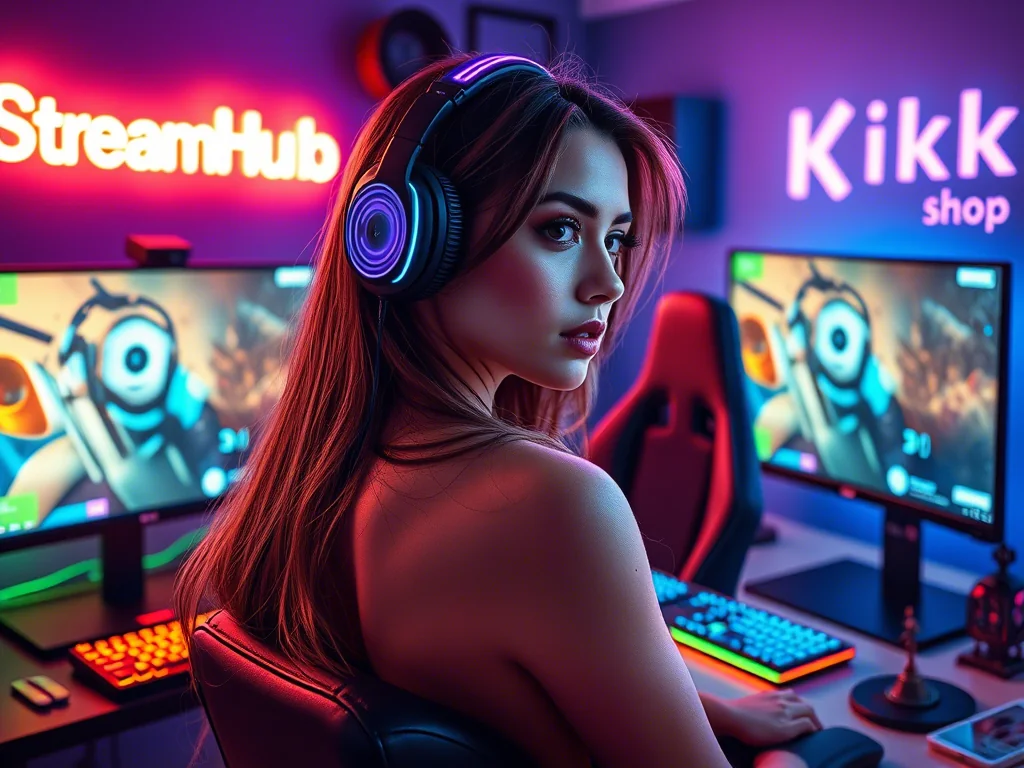
Background Brainstorm: From Subtle Branding to Immersive Worlds
Once you've mastered the clean key, the world is your oyster. Here's how to think about your virtual background:
- Branded Simplicity: A clean, solid color with your logo subtly placed in a corner. This looks professional, minimizes distractions, and reinforces your brand.
- Virtual Set: For talk shows, interviews, or even just a more polished presence, a virtual set can transform your stream. Think of a cozy library, a high-tech command center, or a stylized gaming room.
- Game Overlays: Seamlessly integrate your webcam into your game. With a clean key, you can place yourself into the game world, creating dynamic reactions without blocking important UI.
- Animated Backgrounds: Loop subtle animations—a gentle rain, a starry sky, or abstract motion graphics—to add visual interest without being overly distracting.
- Contextual Scenery: Match your background to the game or content you're creating. Streaming a retro game? Use a retro-themed background. Discussing current events? A newsroom-style background.
A Creator's Dilemma: The Small Space, Bright Light Challenge
Let's consider Maya, a new streamer living in a small apartment. She bought a roll-up green screen but found it hard to get enough distance between herself and the wall. Her room also has a large window, making consistent lighting a nightmare. She kept getting shadows on her screen and a faint green outline around her hair.
Maya's Solution:
- Maximizing Distance: Maya invested in a collapsible stand for her green screen, allowing her to pull it a few feet away from the wall, giving her more room to work with. Even a small gain in distance made a huge difference for shadows.
- Controlling Ambient Light: During the day, she now uses blackout curtains on her window to eliminate inconsistent sunlight. She relies entirely on her dedicated lighting setup during streams.
- Diffused Lighting: Instead of direct lights, Maya used softbox diffusers on her screen lights to ensure even illumination without hot spots. She also added a small LED panel with a diffuser as a dedicated backlight to combat the green spill.
- Software Tweaks: Through careful adjustment of "Similarity" and "Key Color Spill Reduction" in OBS, she was able to eliminate the faint green halo, paying close attention to her hair, which was the trickiest part.
By addressing each pillar methodically, Maya transformed her setup from frustrating to fantastic, even in a cramped space.
Community Pulse: The Shadow, the Spill, and the Struggle for Smoothness
Across creator forums and discussions, a few common pain points consistently emerge regarding green screens. Many streamers voice frustration over persistent "green halos" or "ghosting" around their edges, particularly with hair or translucent objects. This is often tied back to insufficient backlighting or aggressive spill reduction settings that desaturate the subject. Another frequent complaint is the "shadow struggle"—dark patches appearing on the green screen itself, making it impossible for the software to key out consistently. This almost always points to uneven lighting on the screen or the subject being too close to the screen. Finally, the battle against wrinkles and creases is a never-ending saga for many, leading to patchy, unprofessional keys. The consensus is clear: lighting is king, and patience in fine-tuning is paramount.
Your Green Screen's Lifespan: What to Re-Check Over Time
A green screen setup isn't a "set it and forget it" affair. Regular checks ensure you maintain that crisp, clean key:
- Screen Condition: Periodically inspect your green screen for new wrinkles, tears, or stains. A quick steam or re-stretching can work wonders.
- Lighting Consistency: Are all your lights working? Have any bulbs dimmed or shifted? Check your screen's evenness regularly, especially if you move your setup.
- Camera Settings: If your camera's white balance or exposure changes, it can affect how your green screen appears to your software, requiring chroma key adjustments.
- Software Updates: Streaming software updates can sometimes alter filter behavior. After an update, do a quick test stream to ensure your chroma key is still performing as expected.
- Environmental Changes: Moved furniture? Added a new light source in your room? These external factors can impact your setup and require adjustments to your green screen lighting or software.
2026-03-22